In the world of high-end photography and digital art sales, the details make the difference. When a customer is looking to purchase a high-resolution image, they want to see the sharpness, the texture, and the quality before they hit the “buy” button. The Sell Media Magnifier extension is the professional tool designed to give your visitors a “closer look” without compromising your original files.
By integrating seamlessly with the Graph Paper Press “Sell Media” ecosystem, this extension adds a sophisticated interactive element to your WordPress site. In this comprehensive guide, we will explore the core functions of the Sell Media Magnifier, walk through the installation process, and explain why getting your copy from Pluginpro.org is the smartest decision for your digital storefront.
1. Introducing Sell Media Magnifier
The Sell Media Magnifier is a premium extension that introduces a powerful “hover-to-zoom” functionality to your media items. While the standard Sell Media plugin displays your images in a static format, the Magnifier add-on creates an immersive experience that mirrors the world’s leading stock photography agencies.
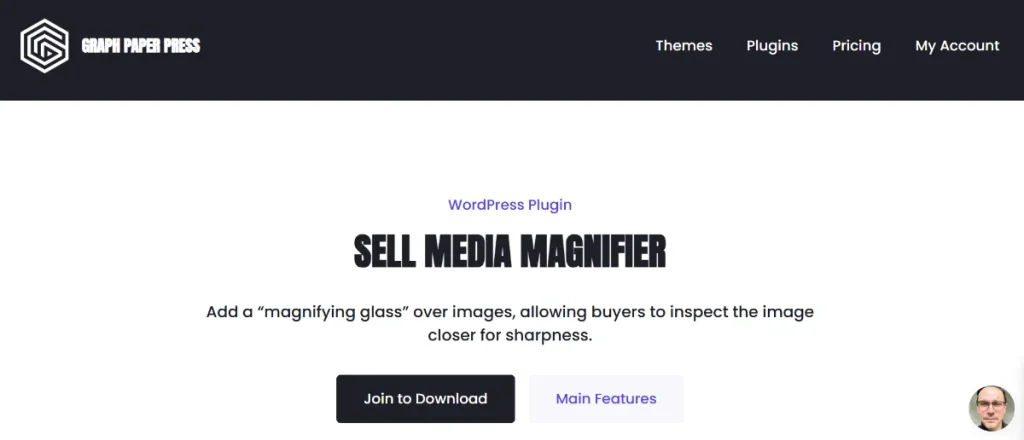
When a user hovers their mouse over a preview image, the Sell Media Magnifier displays a zoomed-in, high-definition view of that specific area in a secondary window or as an overlay. This allows potential buyers to inspect the fine details of your work—such as the grain of a film, the focus of a portrait, or the intricate patterns of a landscape—without you having to display the full-sized, unwatermarked original. It is the perfect balance of transparency and security.
2. Feature Functions and Selling Points
Why is the Sell Media Magnifier a “must-have” for your professional portfolio? Its features are built to convert “window shoppers” into paying customers.
High-Definition Zoom Capabilities
The primary selling point of the Sell Media Magnifier is its precision. It uses your preview images to generate a detailed zoom, allowing users to verify the quality of the asset. This level of detail builds immediate trust with professional buyers who require high-standard media for print or commercial use.
Customizable Zoom Levels
Every artist has a different preference for how much detail they want to reveal. The Sell Media Magnifier allows you to adjust the zoom power. Whether you want a subtle 2x zoom or a deep 5x magnification, the plugin gives you total control over the user experience.
Responsive and Touch-Friendly
Modern buyers use everything from 30-inch monitors to 6-inch smartphones. The Sell Media Magnifier is built with responsive design in mind. On desktop, it responds to mouse movements, while on mobile devices, it supports touch interactions, ensuring your site remains professional across all platforms.
Smooth Performance
A slow website kills sales. The Sell Media Magnifier is optimized for speed. It uses lightweight JavaScript to ensure the zoom effect is fluid and lag-free. This ensures that adding interactive features doesn’t come at the cost of your site’s performance or SEO rankings.
Watermark Integration
One of the best features of the Sell Media Magnifier is its compatibility with Sell Media’s watermarking system. You can allow users to magnify your work while still keeping your protective watermarks visible, ensuring your intellectual property remains safe even during close-up inspections.
3. How to Install Sell Media Magnifier
Setting up the Sell Media Magnifier on your WordPress site is a simple process that takes only a few minutes.
Step 1: Requirements
- A WordPress installation with the core Sell Media plugin (free) active.
- The Sell Media Magnifier ZIP file from your Pluginpro.org account.
Step 2: Upload and Activate
- Log in to your WordPress Admin area.
- Navigate to Plugins > Add New > Upload Plugin.
- Choose the
sell-media-magnifier.zipfile and click Install Now. - Click Activate Plugin.
Step 3: Configure Settings
- Go to Donations > Settings > Extensions (or the specific Sell Media settings menu).
- Locate the Magnifier tab.
- Choose your zoom type (Inner, Outer, or Lens) and set your preferred magnification power.
- Save your changes.
Step 4: Verify on Frontend
Navigate to a product page on your site. Hover over your main image to ensure the Sell Media Magnifier is working as intended.
4. Why Should I Buy in Pluginpro.org?
When you are ready to upgrade your store with the Sell Media Magnifier, Pluginpro.org is the premier choice for value and reliability.
Save 95% of Your Budget
Official licenses for premium WordPress extensions can be expensive, often requiring high annual fees. At Pluginpro.org, we leverage the GPL license to provide you with the exact same software for a fraction of the cost. By choosing us, you can save 95% of your budget, allowing you to reinvest in your gear or marketing.
100% Clean Code
Security is our top priority. We know that your website is your livelihood. Every version of the Sell Media Magnifier we host is thoroughly scanned and verified to be 100% clean code. We do not use “nulled” scripts that contain malware. You get original, secure files that are safe for any production site.
Unlimited Website Usage
Unlike official licenses that restrict you to a single domain, your purchase from Pluginpro.org grants you unlimited website usage. Whether you run one photography site or manage a dozen for clients, the Sell Media Magnifier can be used across all of them without extra fees.
Easy to Update
The web is always evolving, and we make it easy to update your plugins. Whenever a new version of the Sell Media Magnifier is released, it becomes available in our dashboard. Simply download and re-upload to stay current with the latest features and security patches without a high-priced subscription.
5. Boosting Sales with Interactive UX
The Sell Media Magnifier isn’t just a visual “trick”; it is a conversion tool. Research shows that interactive product pages have a higher conversion rate than static ones. By giving users the Sell Media Magnifier, you are giving them the confidence they need to complete a purchase.
Furthermore, this plugin improves your site’s “dwell time.” When users spend time interacting with the Sell Media Magnifier to look at your photos, search engines like Google see this as a sign of high-quality, engaging content. This can lead to better search rankings over time.
6. Best Practices for Image Magnification
To get the most out of the Sell Media Magnifier, consider these tips:
- High-Resolution Previews: For the Sell Media Magnifier to look its best, make sure your “Preview” image sizes in WordPress are set large enough (e.g., 1200px or higher) to provide clear detail when zoomed.
- Lens Size: If using the “Lens” mode in Sell Media Magnifier, ensure the lens isn’t too large, so it doesn’t cover up important navigation elements on your page.
- Consistency: Use the same Sell Media Magnifier settings across all your galleries to provide a stable and professional user experience.
Conclusion
If you want to compete with the top-tier stock media agencies, you need a website that looks and acts the part. The Sell Media Magnifier extension is one of the easiest ways to add professional-grade interactivity to your WordPress site. It empowers your customers to inspect your work while keeping your original files secure.
Don’t let high prices or restrictive licenses slow you down. Visit Pluginpro.org to download the Sell Media Magnifier today. Take advantage of our 95% budget savings, 100% clean code, and unlimited website support. It’s time to show your customers the true quality of your work!