Managing a high-volume WooCommerce store means dealing with mountains of data. Whether you need to sync with a fulfillment center, move data to a new accounting platform, or simply keep a secure backup, manual entry is not an option. The WooCommerce Customer/Order XML Export Suite is the professional-grade solution for automating your data workflows.
In this guide, we’ll explore how this suite streamlines your business, how to set it up, and why sourcing it from Pluginpro.org is the best decision for your bottom line.
Introducing the WooCommerce Customer/Order XML Export Suite
The WooCommerce Customer/Order XML Export Suite is a powerhouse extension designed to handle complex data migrations and automated reporting. While standard export tools often struggle with large datasets or rigid formats, this suite is built for flexibility and scale.
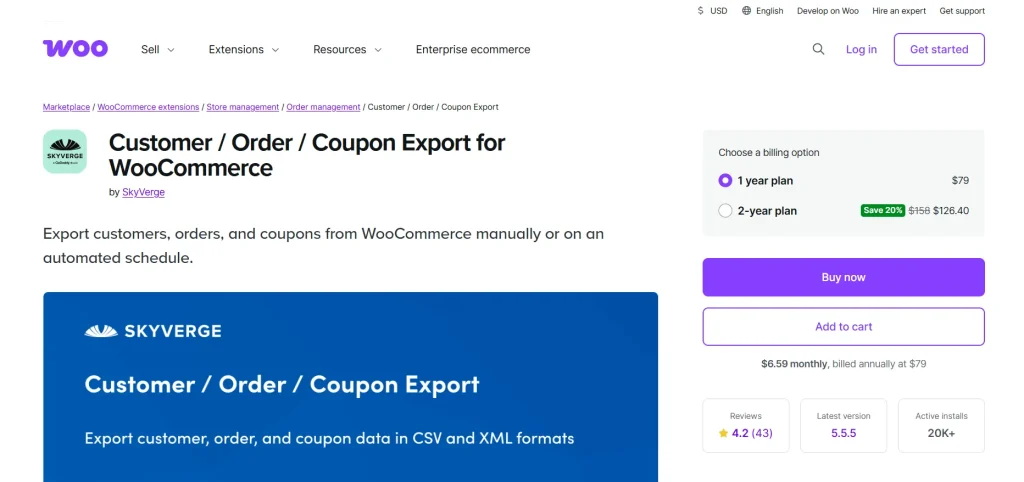
It allows you to export customers, orders, and even coupons into highly structured XML files. These files are perfect for “machine-to-machine” communication—meaning your store can talk directly to your warehouse, shipping provider, or external CRM without any human intervention.
Key Features and Selling Points
Why do top-tier e-commerce managers rely on this suite? Here are the standout functions:
1. Automated and Scheduled Exports
Set it and forget it. You can schedule exports to happen at specific intervals (hourly, daily, or weekly) or trigger them automatically whenever a new order is marked as “Paid.” This ensures your fulfillment team always has the latest data.
2. Flexible Transfer Methods
Your data needs to get where it’s going. This suite supports several remote transfer methods, including:
- FTP / SFTP: Upload files directly to a secure server.
- HTTP POST: Send data to an external API or web service.
- Email: Receive your XML reports directly in your inbox.
3. Custom XML Formats
Not every system reads XML the same way. The suite includes a powerful “Custom Format” builder, allowing you to reorder tags, rename elements, and include custom meta fields (like data from other plugins) to ensure the file is perfectly compatible with your third-party software.
4. Asynchronous Batch Processing
Exporting 10,000 orders at once can crash a standard server. This plugin uses background batch processing, allowing it to churn through massive amounts of data without slowing down your site or causing timeouts.
5. Individual or Bulk Manual Exports
Need a quick report for a specific customer? You can export data directly from the Orders or Users list in WordPress with just a few clicks.
Why Buy from Pluginpro.org?
When you’re managing critical business data, you need tools that are reliable and cost-effective. Pluginpro.org is the leading destination for smart e-commerce owners.
Save 95% of Your Budget
Enterprise-level WooCommerce extensions can cost hundreds of dollars in recurring annual fees. At Plugin Pro, we provide the exact same high-performance tools at a 95% discount. We believe that world-class automation should be affordable for businesses of all sizes.
100% Clean Code
Security is paramount when handling customer and order data. Every file on Pluginpro.org is 100% clean, original, and verified. We never use “nulled” scripts or modified code, so you can export your data with total peace of mind.
Unlimited Website Usage
Most official licenses restrict you to a single store. With Pluginpro.org, you can typically use your purchased tools on unlimited websites. This is an unbeatable value for developers managing multiple client stores or entrepreneurs running a network of sites.
Easy to Update
Data standards and WordPress versions evolve. We provide regular updates to ensure your XML Export Suite remains fully compatible and secure, giving you a future-proof solution for your data management needs.
How to Install the XML Export Suite
Ready to automate your workflow? Follow these simple steps:
Step 1: Download from Plugin Pro
Download the .zip file from your Pluginpro.org dashboard after purchase.
Step 2: Upload and Activate
- Log in to your WordPress dashboard.
- Go to Plugins > Add New > Upload Plugin.
- Choose the file you downloaded and click Install Now, then Activate.
Step 3: Configure Your Export
- Navigate to WooCommerce > Export.
- To set up an automated feed, go to the Automated Exports tab.
- Choose your Output Type (XML), select the data you want to export (Orders or Customers), and set your Transfer Method (FTP, Email, etc.).
Step 4: Run a Manual Test
Before relying on the automation, go to the Manual Export tab. Select a small date range and click Export. Open the resulting XML file to ensure the data format meets your requirements.
Conclusion: Take Control of Your Store’s Data
The WooCommerce Customer/Order XML Export Suite is the bridge between your store and the rest of the professional world. It eliminates manual data entry, reduces errors, and saves your team hours of administrative work every week.
Don’t let high software costs limit your store’s potential. Visit Pluginpro.org today to get this essential suite with 100% clean code, unlimited site usage, and massive budget savings.