
If you’re looking for how to install Elementor Pro, you’re in the right place. Elementor has become one of the most popular WordPress page builders thanks to its drag-and-drop interface, extensive design capabilities, and beginner-friendly workflow. However, many users are unsure about the correct installation process for Elementor Pro, especially because it requires both the free Elementor plugin and the premium Pro plugin to work properly.
Installing Elementor Pro incorrectly can lead to activation errors, missing features, or compatibility issues with your WordPress website. Fortunately, the installation process is straightforward once you understand the required steps.
In this comprehensive guide, you’ll learn everything you need to know about how to install Elementor Pro, including system requirements, installation methods, activation, troubleshooting, best practices, recommended companion plugins, and frequently asked questions. Whether you’re building your first website or upgrading an existing one, this tutorial will help you complete the installation correctly.
1. What You Need Before Installing Elementor Pro
Before installing Elementor Pro, make sure your WordPress website meets the minimum requirements below. Preparing everything in advance helps prevent installation errors, activation problems, and compatibility issues later.
1.1. WordPress Requirements
Your website should have:
- Latest version of WordPress
- PHP 7.4 or newer
- MySQL 5.7 or MariaDB 10.4+
- HTTPS enabled
- Updated web browser
Using outdated software may result in compatibility problems.
1.2. Hosting and Domain
Choose reliable WordPress hosting with:
- SSD storage
- PHP memory limit of at least 256MB
- Fast server response
- Automatic backups
- SSL certificate
Quality hosting significantly improves Elementor performance.
1.3. Elementor License
You’ll need:
- Elementor account
- Elementor Pro subscription
- Downloaded Elementor Pro ZIP file
- Valid license key
Remember that purchasing Elementor Pro does not automatically install it on your website.
1.4. Basic Setup Requirements
Before installation:
- Install WordPress
- Complete WordPress setup
- Install a compatible theme (Hello Elementor is recommended)
- Backup your website
- Disable unnecessary plugins during installation if needed
2. How to Install Elementor Pro Step by Step
Follow these steps carefully to install Elementor Pro correctly.
Step 1 – Install the Free Elementor Plugin
Many beginners skip this step, but Elementor Pro depends on the free Elementor plugin.
Navigate to:
Dashboard → Plugins → Add New
Search for:
Elementor Website Builder
Click:
- Install Now
- Activate
Wait until the installation completes.
Step 2 – Download Elementor Pro
Log into your Elementor account.
Go to:
Downloads
Download the latest version of:
Elementor Pro
Do not unzip the downloaded file.
WordPress requires uploading the ZIP file directly.
Step 3 – Upload and Install Elementor Pro
Inside WordPress:
Plugins → Add New
Click:
Upload Plugin
Choose the Elementor Pro ZIP file.
Click:
Install Now
After installation finishes:
Click Activate Plugin.
At this point, Elementor Pro is installed but not yet licensed.
Step 4 – Activate Your License
Go to:
Elementor → License
Click:
Connect & Activate
Log into your Elementor account.
Authorize your website.
After activation, you’ll see:
License Active
Now every premium widget and feature becomes available.
Although installing Elementor Pro is straightforward, many beginners encounter avoidable issues during the process.
To ensure a smooth installation:
- Install the free Elementor plugin before Elementor Pro.
- Upload the original ZIP file instead of extracting it first.
- Activate your Elementor license after installing the plugin.
- Keep WordPress and PHP updated to avoid compatibility problems.
- Create a backup before installing Elementor Pro on a live website.
3. Best Practices for Using Elementor Pro
Installing Elementor Pro is only the beginning. Following these best practices ensures better performance and stability.
3.1. Keep Elementor Updated
Always update:
- WordPress
- Elementor
- Elementor Pro
- Your active theme
Keeping software updated reduces security vulnerabilities and compatibility issues.
3.2. Use a Lightweight Theme
Heavy themes can conflict with page builders.
Recommended themes include:
- Hello Elementor
- Astra
- Kadence
- GeneratePress
These themes are optimized for Elementor.
3.3. Optimize Website Performance
Large websites built with Elementor can become slow if not optimized.
Improve performance by:
- Compressing images
- Enabling caching
- Using a CDN
- Reducing unnecessary plugins
- Optimizing fonts
A fast website improves both SEO and user experience.
3.4. Clear Cache After Installation
After installing or updating Elementor Pro, clear your website cache, browser cache, and any CDN cache to ensure the latest styles and scripts are loaded correctly.
3.5. Create Reusable Templates
One major advantage of Elementor Pro is its template system.
Save:
- Landing pages
- Sections
- Headers
- Footers
- Popups
Reusable templates save significant development time.
4. Troubleshooting Common Elementor Pro Installation Issues
Even if you follow the installation steps correctly, you may still encounter a few common issues when setting up Elementor Pro. Most of these problems are related to plugin dependencies, server configuration, or license activation, and they can usually be resolved in just a few minutes.
4.1. Elementor Pro Won’t Activate
If Elementor Pro won’t activate, the most common reason is that the free Elementor plugin hasn’t been installed or activated first. Other possible causes include an expired license, signing in with the wrong Elementor account, or temporary internet connection issues during license verification.
To resolve the problem, make sure the free Elementor plugin is active, verify that your license is still valid, and reconnect your Elementor account if necessary. Once the license is successfully activated, all Pro features should become available.
4.2. Upload Failed During Installation
If WordPress displays an error while uploading the Elementor Pro ZIP file, the issue is usually related to your server configuration rather than the plugin itself. Low PHP memory limits, small upload limits, or restrictions imposed by your hosting provider are the most common causes.
Start by increasing your server’s PHP settings, including:
- upload_max_filesize
- post_max_size
- memory_limit
If you’re unsure how to update these values, contact your hosting provider for assistance. They can usually adjust these settings within a few minutes.
4.3. Missing Pro Widgets
Sometimes Elementor Pro installs successfully, but the premium widgets don’t appear inside the editor. This usually happens because the license hasn’t been activated, the website is serving cached files, or another plugin is causing a conflict.
- To fix the issue, try the following steps:
- Reactivate your Elementor Pro license.
- Clear your website, browser, and CDN cache.
- Regenerate Elementor’s CSS and data.
- Temporarily disable other plugins to check for compatibility conflicts.
After completing these steps, reopen the Elementor editor to see if the Pro widgets are available.
5. Recommended Plugins or Tools for Elementor Pro
While Elementor Pro includes a wide range of powerful design features, pairing it with the right plugins can further improve your website’s performance, SEO, security, and overall functionality. Instead of installing every available addon, focus on tools that complement Elementor Pro and support your specific website goals. Below are some of the most popular plugins that work well alongside Elementor Pro.
5.1. Essential Addons for Elementor
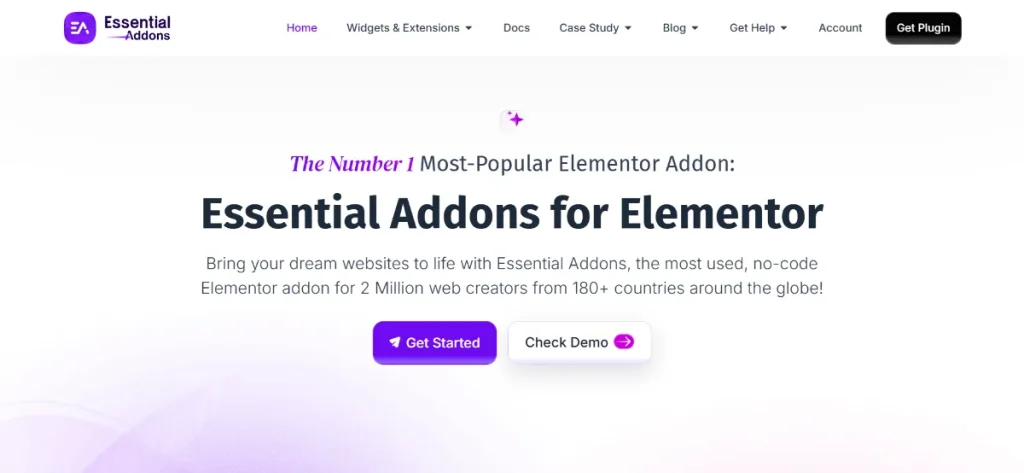
Essential Addons for Elementor expands Elementor Pro with a wide range of additional widgets and design elements, making it easier to build more interactive and visually engaging pages without custom coding. It’s a great companion if you frequently create landing pages, business websites, or portfolios and want more design flexibility while staying within the Elementor ecosystem.
5.2. WP Rocket
WP Rocket is a performance optimization plugin that improves website speed through page caching, file optimization, lazy loading, and database cleanup. Since Elementor Pro websites often include rich layouts and visual effects, using WP Rocket helps reduce loading times, improve Core Web Vitals, and deliver a smoother browsing experience for visitors.
5.3. Rank Math SEO
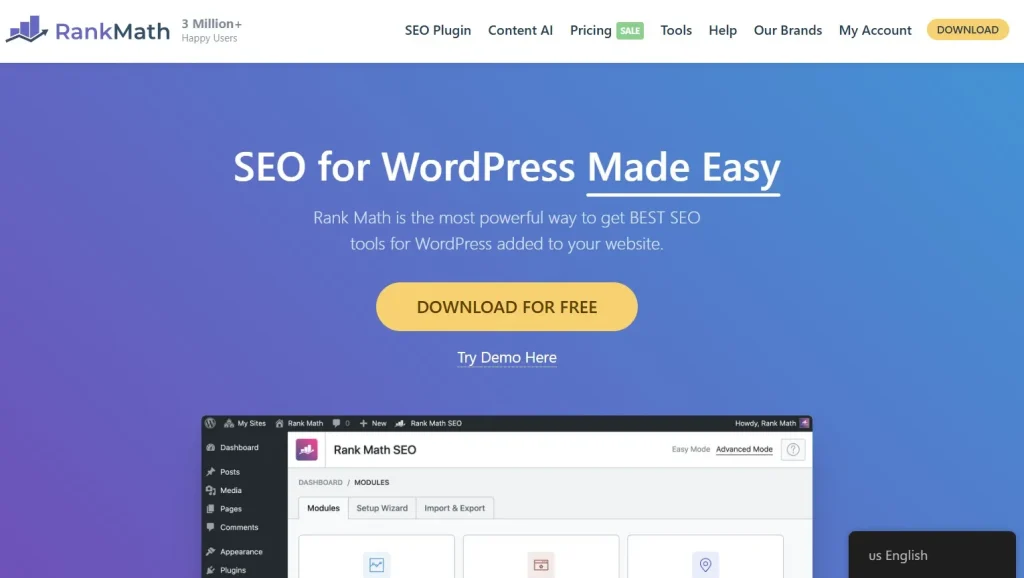
SRank Math SEO helps optimize your WordPress website for search engines by managing meta tags, XML sitemaps, schema markup, and on-page SEO settings. When used alongside Elementor Pro, it allows you to build visually appealing pages while ensuring they remain well optimized for search visibility and organic traffic.
5.4. Advanced Custom Fields (ACF)
Advanced Custom Fields (ACF) lets you create custom fields and structured content for WordPress websites. When combined with Elementor Pro’s Dynamic Content feature, it becomes much easier to build advanced websites such as portfolios, real estate listings, business directories, or team pages without writing custom code.
6. FAQs
1. Do I Need the Free Elementor Plugin?
Yes. Elementor Pro is an extension of the free Elementor plugin, so the free version must be installed and activated first. Without it, Elementor Pro cannot function properly or provide access to its premium features.
2. Can I Install Elementor Pro Without a License?
Yes, but with limitations. You can install and activate the Elementor Pro plugin without connecting a license. However, you’ll need a valid Elementor Pro license to receive updates, access premium templates, and unlock all Pro widgets and features.
3. How Much Does Elementor Pro Cost?
Elementor Pro is available through Elementor’s official subscription plans. If you’re looking for a more budget-friendly option, PluginPro offers genuine Elementor Pro files starting at just $4.5 per plugin. For users who need access to multiple premium WordPress plugins and themes, PluginPro also provides flexible membership plans with regular updates, original files, and unlimited website usage.
4. Can I Install Elementor Pro Before Installing Elementor Free?
No. Elementor Pro depends on the free Elementor plugin, so you should always install and activate Elementor first. Trying to activate Elementor Pro without the free version may result in activation errors or missing features.
5. Why Can’t I See Elementor Pro Widgets After Installation?
If Elementor Pro widgets don’t appear after installation, check that your license is active, clear your website and browser cache, and ensure there are no plugin conflicts. In some cases, regenerating Elementor’s CSS and data can also resolve the issue.
7. Conclusion
Installing Elementor Pro correctly is the first step toward building faster, more flexible, and professional WordPress websites. By following the steps in this guide installing the free Elementor plugin first, uploading the Pro ZIP file, activating your license, and applying a few best practices you can avoid common installation issues and start using Elementor Pro with confidence.
If you’re looking for a reliable place to get Elementor Pro and other premium WordPress plugins at an affordable price, PluginPro offers genuine plugins, regular updates, and dedicated customer support to help you get started quickly. Whether you’re building a personal blog, business website, online store, or landing page, PluginPro makes it easy to access the tools you need without the high cost of individual licenses.
Ready to build your next WordPress website? Choose the right Elementor Pro plan from PluginPro and start creating beautiful, responsive websites with confidence.