If you’re planning to build a professional WooCommerce store, learning how to install WoodMart themes correctly is the first step toward creating a fast, modern, and highly customizable online shop. While installing a WordPress theme may seem straightforward, many beginners encounter issues such as missing demo content, plugin errors, broken layouts, or slow website performance due to incorrect installation.
If you’re wondering how to install WoodMart theme, the process is straightforward. Simply upload the installable theme ZIP file to WordPress, activate the theme, install the required plugins, activate your license, and import a demo website. Following these steps ensures your WooCommerce store is set up correctly and avoids common installation issues.
WoodMart is one of the most popular premium WooCommerce themes available today. It offers a wide collection of pre-built demos, deep WooCommerce integration, compatibility with Elementor and WPBakery, and extensive customization options. However, to enjoy all these features, the theme needs to be installed properly from the beginning.
In this guide, you’ll learn how to install WoodMart theme step by step, from preparing your WordPress website and uploading the theme files to activating your license, importing demo content, and configuring WooCommerce.In this guide, you’ll learn how to install the WoodMart theme step by step, from preparing your WordPress website and uploading the theme files to activating your license, importing demo content, and configuring WooCommerce. You’ll also discover common installation issues and practical tips to ensure your online store runs smoothly from day one.
1. What Is the WoodMart Theme?
WoodMart is a premium WooCommerce WordPress theme designed specifically for building high-performance eCommerce websites. Whether you’re launching a fashion store, electronics shop, furniture business, or digital marketplace, WoodMart provides everything needed to create a modern online store without extensive coding knowledge.
Unlike many generic WordPress themes, WoodMart includes:
- 90+ professionally designed demo websites
- WooCommerce optimization
- Built-in AJAX functionality
- Advanced header builder
- Mega Menu support
- Performance optimization
- Elementor and WPBakery compatibility
- Responsive mobile design

WoodMart has become one of the most popular WooCommerce themes because it combines performance, flexibility, and a large collection of professionally designed templates. It’s suitable for beginners launching their first online store as well as agencies building multiple client websites. If you’re planning to build an online store, understanding what the WoodMart theme offers will help you decide whether it’s the right choice before starting the installation process.
1.1 When Do You Need to Install WoodMart?
The WoodMart theme is a great choice whenever you need a flexible and feature-rich WooCommerce website. Whether you’re creating a new online store or redesigning an existing one, installing WoodMart gives you access to professional layouts and advanced eCommerce functionality.
You should install WoodMart if you want to:
- Build a WooCommerce store quickly
- Replace an outdated theme
- Launch a new eCommerce website
- Improve design flexibility
- Use professionally designed demo content
1.2 Why Proper Installation Matters
Installing the WoodMart theme correctly helps prevent common issues that may affect your website’s appearance or functionality. A proper installation also ensures all required plugins work together and that future updates can be applied without problems.
Correct installation helps you:
- Avoid missing style sheets
- Prevent demo import failures
- Ensure plugin compatibility
- Improve website performance
- Reduce future maintenance issues
2. What You Need Before Getting Started
Before installing the WoodMart theme, take a few minutes to prepare your WordPress environment. Meeting the recommended system requirements reduces the risk of installation errors, failed demo imports, and plugin conflicts later on.
2.1 WordPress Requirements
Make sure your website is running:
- WordPress 6.x or newer
- PHP 8.0 or higher (8.1 recommended)
- MySQL 5.7+ or MariaDB 10.4+
- HTTPS enabled
- Latest WooCommerce version
Older PHP versions may cause installation errors or plugin conflicts.
2.2 Hosting and Domain
Choose quality hosting that supports WooCommerce.
Recommended resources include:
- SSD or NVMe storage
- Minimum 2GB RAM
- PHP Memory Limit: 256MB+
- Max Execution Time: 300 seconds
- Upload Limit: 128MB+
Reliable hosting significantly speeds up demo imports. Shared hosting plans with limited resources may struggle when importing large demo websites. Choosing optimized WordPress or WooCommerce hosting usually provides a smoother installation experience.
2.3 Purchase a Valid License
Since WoodMart is a premium theme, you’ll need:
- Theme purchase from ThemeForest
- Access to your download files
- License purchase code
- Theme ZIP package
Always download the Installable WordPress File Only, not the full package.
2.4 Basic Website Preparation
Before installation:
- Install WordPress
- Remove unnecessary themes
- Delete unused plugins
- Backup your website
- Update WordPress to the latest version
This minimizes installation conflicts.
3. How to Install the WoodMart Theme Step by Step
Follow the steps below to learn how to install WoodMart theme correctly. Completing each step ensures your WooCommerce store is configured properly before customization begins.
Step 1 – Download the WoodMart Theme Files
Log into your ThemeForest account.
Navigate to:
Downloads → WoodMart → Download → Installable WordPress File Only
Save the ZIP file to your computer.
Do not unzip the file before uploading. Uploading the correct installable ZIP file is one of the most important steps. Many installation errors occur because users accidentally upload the full ThemeForest package instead of the WordPress theme file.
Step 2 – Upload and Install the Theme
Inside your WordPress dashboard:
Go to:
Appearance → Themes → Add New → Upload Theme
Upload the WoodMart ZIP file.
Click:
Install Now
After installation finishes:
Click Activate.
Congratulations! The theme is now installed.
Step 3 – Install Required Plugins
Once activated, WoodMart will recommend several required plugins.
Usually these include:
- WooCommerce
- WoodMart Core
- Slider Revolution
- Elementor or WPBakery
- Contact Form 7
- Mailchimp
- Wishlist plugins
Click:
Install All Plugins
Wait until every plugin finishes installing.
Then activate them.
Without WoodMart Core, many theme functions won’t work correctly. It’s recommended to install and activate every required plugin before importing a demo website. Skipping this step may result in missing layouts or incomplete functionality.
Step 4 – Activate Your License
Open:
WoodMart → Dashboard
Enter your purchase code.
License activation provides:
- Automatic updates
- Premium support
- Demo library
- Theme patches
- New features
Although the theme can work without activation, updates become much easier with a valid license.
Step 5 – Import a Demo Website
One of the biggest advantages of WoodMart is its demo importer.
Navigate to:
WoodMart → Pre Built Websites
Browse available demos.
Choose one that matches your business.
Examples include:
- Fashion
- Electronics
- Furniture
- Jewelry
- Marketplace
- Grocery
- Cosmetics
Click:
Import Demo
Wait several minutes.
Avoid closing your browser during the import process. From our experience, most demo import failures are caused by insufficient PHP memory limits or server timeouts. If the import stops unexpectedly, increase your hosting resources before trying again.
Step 6 – Configure WooCommerce
After importing the demo:
Open:
WooCommerce → Settings
Configure:
- Currency
- Shipping
- Payment gateways
- Tax
- Email notifications
- Product images
These settings prepare your store for customers.
Step 7 – Customize Your Website
Now personalize your store.
Modify:
- Logo
- Header
- Footer
- Homepage
- Typography
- Colors
- Product pages
- Navigation menus
Most customization happens through:
- Elementor
- WordPress Customizer
- WoodMart Theme Settings
Once the demo is imported, spend some time replacing the default branding, adjusting typography, configuring navigation menus, and optimizing product pages to match your business identity.
4. Best Practices After Installing the WoodMart Theme
Installing the theme is only the beginning. Following a few maintenance best practices helps keep your WooCommerce store secure, fast, and compatible with future WordPress and plugin updates.
4.1 Keep Everything Updated
Always update:
- WordPress
- WooCommerce
- WoodMart
- Plugins
- PHP version
Updates improve security and compatibility.
4.2 Enable Caching
Caching reduces page load times.
Popular caching plugins include:
- LiteSpeed Cache
- WP Rocket
- Flying Press
Combined with WoodMart, these plugins greatly improve speed.
4.3 Optimize Images
Large images slow down online stores.
Use:
- WebP format
- Image compression
- Lazy loading
This significantly boosts Core Web Vitals.
4.4 Remove Unused Plugins
Every extra plugin consumes server resources.
Deactivate and remove plugins you no longer need.
A lighter website performs better.
4.5 Backup Regularly
Before major updates:
- Backup database
- Backup files
- Save theme settings
This makes recovery easy if something goes wrong.
4.6 Use a Child Theme
Never modify the parent theme directly.
A child theme protects your customizations during updates.
5. Common Problems When Installing the WoodMart Theme
Even when following the installation steps correctly, you may still encounter a few common issues. Fortunately, most of these problems are easy to fix with the right server settings or theme files.
5.1 Theme Upload Failed
Problem
“The uploaded file exceeds the upload_max_filesize directive.”
Solution
Increase:
- upload_max_filesize
- post_max_size
- memory_limit
Or upload using FTP.
5.2 Demo Import Stops
Problem
The import freezes midway.
Causes
- Low PHP memory
- Server timeout
- Firewall restrictions
Fix
Increase:
- Memory Limit
- Max Execution Time
- PHP Timeout
Disable security plugins temporarily if necessary.
5.3 Missing Stylesheet Error
This happens when users upload the wrong ZIP package.
Instead of uploading:
Full Theme Package
Upload:
Installable WordPress File Only
5.4 Required Plugins Won’t Install
Possible causes:
- Limited hosting resources
- Plugin conflicts
- Outdated WordPress
Solutions:
- Update WordPress
- Increase PHP memory
- Disable conflicting plugins
5.5 Website Looks Different From Demo
Most likely:
- Demo content wasn’t fully imported.
- Required plugins are missing.
- Menus haven’t been assigned.
- Widgets weren’t imported.
Re-run the demo importer if needed. Most installation problems can be resolved by checking your hosting configuration, increasing PHP limits, and ensuring all required plugins are installed before importing demo content.
6. Best Plugins to Use with the WoodMart Theme
Although the WoodMart theme includes many built-in features, combining it with a few trusted plugins can improve your store’s performance, SEO, security, and customization options.
6.1 Elementor
Elementor Pro expands the design capabilities of the WoodMart theme with advanced widgets, Theme Builder, Popup Builder, and WooCommerce customization tools. It’s an excellent choice for users who want complete control over their store’s appearance.
6.2 WooCommerce
WooCommerce is the essential eCommerce plugin that powers every online store built with the WoodMart theme. It manages products, inventory, orders, payments, shipping, and customer accounts, making it the foundation of your WooCommerce website.
6.3 WP Rocket
WP Rocket improves loading speed through page caching, CSS and JavaScript optimization, lazy loading, and database cleanup. When combined with the WoodMart theme, it helps deliver a faster shopping experience.

6.4 Rank Math SEO
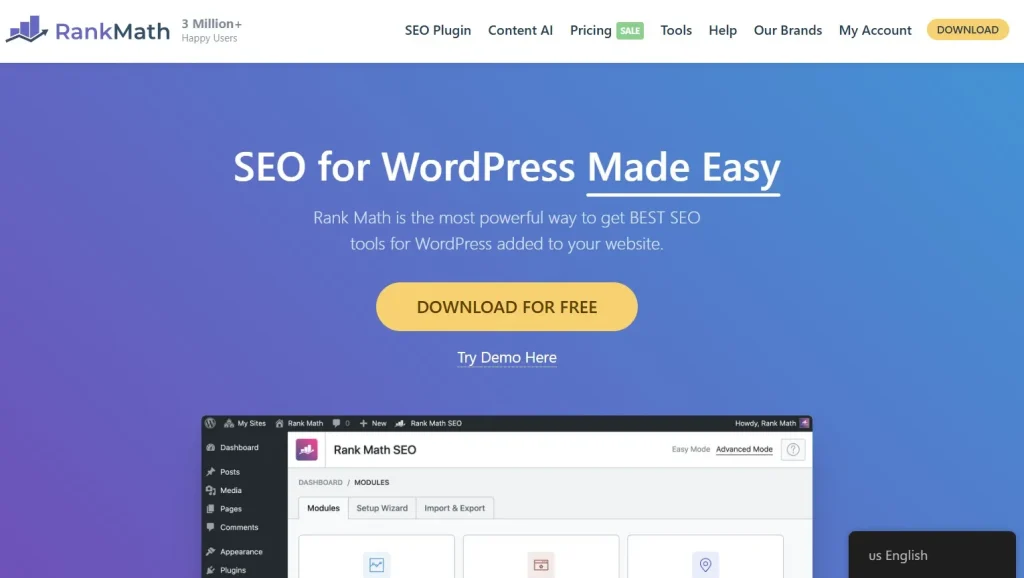
Rank Math SEO is an excellent SEO plugin for websites built with the WoodMart theme. It helps optimize product pages, category pages, and blog content for search engines while providing advanced features such as schema markup, XML sitemaps, keyword optimization, SEO analysis, and a built-in redirect manager. By combining these tools, Rank Math makes it easier to improve your store’s visibility, attract more organic traffic, and maintain strong technical SEO performance.
6.5 LiteSpeed Cache
LiteSpeed Cache is one of the best performance optimization plugins for the WoodMart theme, especially if your hosting provider uses LiteSpeed servers. It offers advanced page caching, image optimization, CDN integration, object caching, and CSS optimization to reduce loading times and improve Core Web Vitals. When configured correctly, LiteSpeed Cache helps deliver a faster shopping experience and maximizes the overall performance of your WooCommerce store.
7. FAQs
1. Is the WoodMart Theme Free?
No. WoodMart is a premium WordPress theme that requires a valid purchase. While unofficial free copies may exist online, they often contain outdated code, security risks, or malware. Purchasing the official version ensures access to updates, support, and all premium features.
2. Can I Install WoodMart Without WooCommerce?
Yes, you can install the theme itself without WooCommerce. However, many of WoodMart’s core features are designed specifically for WooCommerce, including product pages, shop layouts, AJAX filtering, wishlists, and checkout functionality. For a fully functional online store, WooCommerce is highly recommended.
3. Does WoodMart Work with Elementor?
Yes. Modern versions of WoodMart offer excellent compatibility with Elementor, allowing you to build pages using a visual drag-and-drop interface. Many of the pre-built demo websites are also created with Elementor, making customization much easier for beginners.
4. How Much Does the WoodMart Theme Cost?
The official WoodMart theme is sold through ThemeForest under a regular license. If you’re looking for a more affordable solution, PluginPro offers genuine GPL versions and membership plans that provide access to WoodMart along with many other premium WordPress themes and plugins at a significantly lower cost.
5. Can I Change the Demo Later?
Absolutely. You can import another demo at any time. However, if your website already contains content, importing a new demo may overwrite existing layouts or settings. It’s best to test different demos on a staging site before applying changes to a live website.
8. Conclusion
Learning how to install WoodMart theme correctly is the foundation for building a fast, professional, and scalable WooCommerce store. By following the steps in this guide, preparing your hosting environment, installing the theme, activating the required plugins, importing a demo website, and optimizing performance, you’ll avoid common installation issues and create a stable online store from the start.
After installation, remember to keep WordPress, WooCommerce, the WoodMart theme, and all required plugins updated. Regular maintenance, performance optimization, and backups will help your online store remain secure and perform at its best over time.
If you’re looking for an affordable way to access the WoodMart theme and other premium WordPress themes and plugins, explore PluginPro’s GPL library and membership plans. It’s a cost-effective solution for freelancers, agencies, and website owners who want premium tools without paying full price for every individual license.