
Many WordPress users run into a frustrating problem after setting up custom fields: everything looks correct, but the fields never appear where they’re supposed to. Sometimes the entire field group is missing from the editor. In other cases, the values save successfully but never show up on the front end or inside Elementor’s dynamic tags.
In most situations, the problem isn’t caused by a bug in ACF Pro or Advanced Custom Fields. A field group assigned to the wrong location, an incorrect field name in your template, or even cached content can all make it seem as though ACF has stopped working.
This guide explains how to fix ACF fields not showing by identifying the five most common configuration mistakes and showing exactly how to solve each one. By the end, you’ll know where to look first whenever your custom fields don’t appear as expected.
1. Identify Where Your ACF Fields Are Missing
Before changing any settings, determine exactly where the problem occurs. The correct solution depends on whether the field group is missing from the WordPress editor, the field values are not saving, or the saved content is not appearing on the front end.
ACF display problems usually fall into one of these categories:
- The field group does not appear while editing a post, page, product, or custom post type.
- The fields appear, but their values are not saved.
- The values are saved correctly but do not display on the website.
- Elementor cannot find the ACF fields in its Dynamic Tags settings.
- The fields disappear after updating WordPress, your theme, or ACF Pro.
Identifying the exact symptom first helps you focus on the most likely cause instead of changing unrelated settings.
2. Why ACF Fields Are Not Showing
When ACF Pro fields suddenly disappear, many users assume the plugin is broken. In practice, most cases are caused by configuration errors rather than a problem with Advanced Custom Fields itself.
The most common causes include incorrect Location Rules, inactive field groups, mismatched field names, unsupported templates, plugin conflicts, and outdated cached content. Website migrations and recent updates can also affect how field groups are loaded or displayed.
Based on the issues most commonly seen on WordPress websites, reinstalling ACF is rarely the best first step. Checking the field group settings, assigned content type, template code, and caching configuration usually resolves the problem much faster.
Before continuing, consider when the issue first appeared. A recent plugin update, theme change, website migration, PHP upgrade, or caching adjustment can help you identify the likely cause.
3. How to Fix ACF Fields Not Showing (5 Common Mistakes)
3.1 Check Your Field Group Location Rules
Every ACF Pro field group uses Location Rules to decide where it should appear. If those rules don’t match the content you’re editing, WordPress won’t display the fields, even though the field group is configured correctly.
To check your Location Rules:
- Go to Custom Fields → Field Groups.
- Open the field group that’s missing.
- Scroll to the Location Rules section.
- Confirm that the rules match the content you’re editing.
For example, if the rule is Post Type = Post, the field group won’t appear while editing a standard Page.
After making changes, save the field group and refresh the editor before testing again.
3.2 Make Sure the Field Group Is Active
A field group that’s inactive or saved as a draft won’t appear anywhere in WordPress. This commonly happens after importing field groups from another website or restoring a backup.
Open the field group and check:
- The status is Published.
- The Active toggle is enabled.
If either setting is incorrect, update the field group and reload the editor. In many cases, the fields appear immediately after activation.
3.3 Check the Field Group Screen Settings
Sometimes the field group is configured correctly but has been collapsed, moved below the content editor, or hidden from the editing screen.
Open the affected post, page, product, or custom post type and scroll through the entire editor. If the field group is collapsed, click its title to expand it.
You should also open the editor preferences and check whether any panels have been disabled. Depending on your WordPress setup, ACF fields may appear below the main content area or in a different section of the editing screen.
After enabling the panel or expanding the field group, reload the editor and check whether the fields appear.
3.4 Double-Check Your Field Names in Templates
One of the most common mistakes is referencing the wrong field name inside your theme or custom template. Even a small typo or using the field label instead of the actual field name will prevent ACF from returning any value.
For example:
the_field(‘company_name’);
If the actual field name stored in ACF is company_title, no value will be displayed. Also verify that you’re retrieving the data from the correct post ID, especially when working with custom queries or template parts.
3.5 Clear All Website Caches
Even after correcting your field settings or template code, an older cached version of the page may continue to display. This can make it appear as though the fix didn’t work.
Clear every layer of cache before testing again, including:
- WordPress cache plugins
- Server cache
- CDN cache
- Browser cache
- Object cache (Redis or Memcached, if enabled)
After clearing the caches, reload the page using a hard refresh to make sure you’re viewing the latest version.
4. When ACF Fields Still Don’t Appear
If you have checked the field group settings, Location Rules, field names, editor display settings, and website cache but your ACF fields are still missing, the issue may involve a plugin conflict, theme compatibility problem, JavaScript error, user permission, or synchronization failure.
Work through the following checks one at a time. After each change, reload the affected editing screen to see whether the fields return.
4.1 Plugin Conflicts
Although ACF Pro is compatible with most WordPress plugins, conflicts can still occur after installing a new security plugin, page builder extension, optimization plugin, or custom code snippet. In some cases, these conflicts prevent field groups from loading correctly or stop custom fields from appearing inside the editor.
If the problem started after installing or updating another plugin, temporarily deactivate recently added plugins and refresh the editing screen. If the fields return, reactivate each plugin individually until you identify the one causing the conflict.
4.2 Theme Compatibility Issues
Some WordPress themes replace default editing templates or include outdated code that doesn’t fully support newer versions of Advanced Custom Fields. This is more common with heavily customized themes or themes that haven’t been updated for a long time.
To rule out a theme issue, temporarily switch to a default WordPress theme such as Twenty Twenty-Five. If your ACF fields appear normally, the problem most likely lies within your original theme rather than ACF itself.
4.3 JavaScript Errors
Modern versions of ACF rely heavily on JavaScript inside the WordPress block editor. If another plugin or theme generates JavaScript errors, parts of the editor may stop loading correctly, including ACF field groups.
Open your browser’s Developer Tools and check the Console tab for red error messages. If you notice errors from another plugin or script, resolving those issues often restores the missing fields without changing any ACF settings.
4.4 Incorrect User Permissions
Sometimes the fields aren’t actually missing—they’re simply hidden from certain user roles. Membership plugins, role editors, or custom permission settings can prevent editors and authors from viewing or editing custom fields while administrators still have full access.
Log in with an administrator account and check whether the fields appear. If they do, review your role management settings to make sure the affected users have permission to access ACF field groups.
4.5 Sync Issues After Importing Field Groups
If you’ve recently migrated your website or imported ACF field groups from another installation, WordPress may recognize the imported fields but not activate them automatically. Until the synchronization process is completed, the field groups may not appear where expected.
Open Custom Fields → Sync Available and synchronize every available field group. Once the synchronization finishes, refresh the editor and verify that the fields are displayed correctly.
5. Troubleshooting Front-End Display Problems
If you’re still trying to fix ACF fields not showing, even though everything works inside the WordPress dashboard, the issue is usually related to your theme, template, or dynamic display settings.
Work through these checks:
Confirm the Field Contains Data
Before checking your template, open the affected post or page and confirm that the ACF field contains a saved value. A correctly configured template will still display nothing when the field is empty. Enter a test value, update the post, and reload the front end before continuing with more advanced troubleshooting.
Check Template Conditions
Conditional PHP statements may prevent fields from displaying.
For example:
if(get_field(‘subtitle’)){
the_field(‘subtitle’);
}
If the value is empty, nothing will appear.
Verify the Correct Template File
Your website may use different templates for:
- Single posts
- Archive pages
- Custom post types
- WooCommerce products
Ensure you’re editing the template that actually renders the page.
Inspect Elementor dynamic tags
If you’re displaying ACF content with Elementor, edit the affected widget and open its Dynamic Tags settings. Confirm that the selected tag points to the correct ACF field and that the field contains data for the current post. After choosing the correct field, update the template and clear any Elementor or website cache before testing again.
6. Common Mistakes That Cause ACF Fields Not Showing
Many support requests trace back to a handful of recurring mistakes.
| Mistake | Result | Fix |
| Wrong location rules | Fields never appear | Update targeting rules |
| Inactive field group | Fields hidden everywhere | Activate the group |
| Wrong field name | Empty front-end output | Use the correct field name |
| Cache not cleared | Old content remains visible | Clear every cache layer |
| Plugin conflict | Fields disappear unexpectedly | Disable conflicting plugins |
Checking these five areas usually resolves the issue within a few minutes. In most cases, working through these checks systematically is much faster than reinstalling ACF or restoring your website from a backup.
7. Plugins That Extend ACF Pro
ACF Pro becomes even more useful when combined with plugins that improve how custom field data is searched, edited, imported, and managed. These tools are particularly valuable for directories, property websites, product catalogs, membership websites, and other projects that store large amounts of structured information.
If you manage multiple WordPress projects, PluginPro provides access to ACF Pro and compatible premium plugins through individual GPL downloads and flexible membership plans. This can make it easier to build advanced ACF workflows without purchasing every plugin separately.
The following plugins support different aspects of working with Advanced Custom Fields.
7.1 SearchWP
SearchWP is an advanced WordPress search plugin that allows custom field data to be included in website search results. You can choose which ACF fields should be indexed and assign different relevance weights depending on the importance of each field.

This makes SearchWP a strong companion for ACF Pro on directory websites, knowledge bases, course platforms, product catalogs, and other content-heavy projects. Information stored in fields such as locations, specifications, authors, reference numbers, or descriptions can become searchable instead of remaining invisible to the default WordPress search system.
7.2 WP Sheet Editor
WP Sheet Editor provides a spreadsheet-style interface for managing WordPress posts, pages, products, and custom post types. It can display ACF field values as columns, allowing website administrators to review and update large amounts of custom data from one screen.

This combination works particularly well for websites with hundreds of listings, properties, courses, products, or member profiles. Instead of opening each post individually, users can edit multiple ACF values in bulk, perform advanced searches, and maintain more consistent information across the website.
7.3 WP All Import Pro
WP All Import Pro helps website owners import large amounts of content from CSV, Excel, XML, and other supported data sources. Its ACF integration allows imported information to be mapped directly to Advanced Custom Fields, including more complex field types such as Repeaters, Flexible Content, Relationships, images, and galleries.
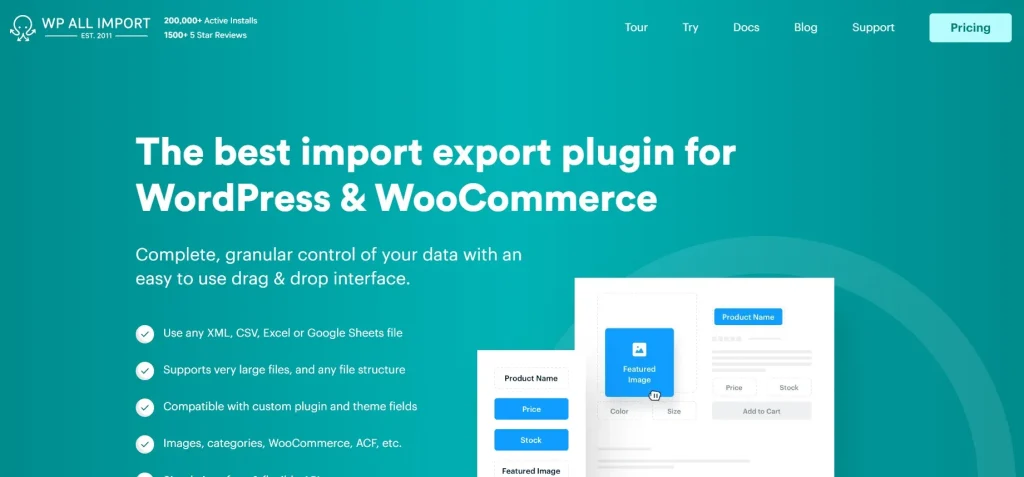
This combination is especially useful when migrating an existing website, creating property or product listings in bulk, or regularly synchronizing data from an external source. Instead of entering every ACF value manually, WP All Import Pro can populate the fields automatically during the import process.
8. FAQ
1. Why are my ACF Pro fields not showing after migrating my website?
This usually happens because field groups haven’t been synchronized, the database wasn’t migrated correctly, or cached content is still being served. Check Custom Fields → Sync Available, then clear your website cache before testing again.
2. Why do my ACF Pro fields appear in the editor but not on the front end?
In most cases, the field values are being saved correctly, but your theme or template is referencing the wrong field name or post ID. Double-check your template code and confirm that the correct field is being loaded. Following the troubleshooting steps in this guide will usually fix ACF fields not showing on the front end.
3. Why are my ACF Pro fields missing in Elementor?
Make sure the field group is assigned to the correct post type and that the field contains data. In Elementor, verify that you’ve selected the correct ACF dynamic tag for the widget you’re using.
4. Do I need ACF Pro to create custom fields?
No. The free version of Advanced Custom Fields supports common field types and is sufficient for many basic websites. ACF Pro is more suitable when you need advanced features such as Repeater Fields, Flexible Content, Gallery Fields, Clone Fields, Options Pages, and ACF Blocks.
5. Where can I get ACF Pro for my WordPress website?
If you’re looking for ACF Pro without paying the full official license price, PluginPro offers GPL downloads starting from just $4.5 per item. If you regularly use premium WordPress themes and plugins, you can also choose one of the PluginPro membership plans, which provide access to a large library of regularly updated GPL products. Whether you need ACF Pro for a single project or manage multiple WordPress websites, you can select the option that best fits your needs and budget.
9. Conclusion
If you’re trying to fix ACF fields not showing, the most effective approach is to troubleshoot one possible cause at a time rather than changing multiple settings simultaneously. In most cases, checking your field group settings, location rules, field names, cache, and front-end templates is enough to restore missing custom fields.
If you use Advanced Custom Fields regularly, keeping ACF Pro updated is just as important as configuring it correctly. Updated versions can help reduce compatibility problems after changes to WordPress, PHP, themes, or other plugins.
PluginPro provides regularly updated GPL versions of ACF Pro together with installation guides and practical troubleshooting resources. Whether you’re building client websites or managing your own WordPress projects, you can access ACF Pro and other premium development tools through one convenient membership.