
If you’re searching for how to fix Yoast SEO sitemap 404 error, the problem usually starts when sitemap_index.xml suddenly returns a 404 Not Found page instead of your Yoast SEO sitemap. This can happen after changing permalink settings, updating a plugin or theme, migrating to a new server, or changing caching and web server rules.
Yoast SEO does not store sitemap_index.xml as a physical XML file in your website’s root directory. Instead, it generates the sitemap through WordPress. That means the server and WordPress rewrite rules need to route requests to the sitemap URL correctly. When those rules, a cache layer, or the server configuration get in the way, the sitemap can return a 404.
The good news is that a broken sitemap won’t wipe your site from Google overnight. Search engines still find pages through internal links and other signals. That said, crawling becomes less efficient without a working sitemap, especially for larger sites, newer sites, or sites with frequently changing content.
Below, we’ll go through the most common causes first, then walk through the fixes – starting with simple WordPress settings before touching .htaccess or Nginx. Along the way, we’ll also cover caching issues, memory limits, plugin conflicts, XML parsing errors, and what to do if Google Search Console still flags the sitemap.

1. The Fast Fix (Try This First)
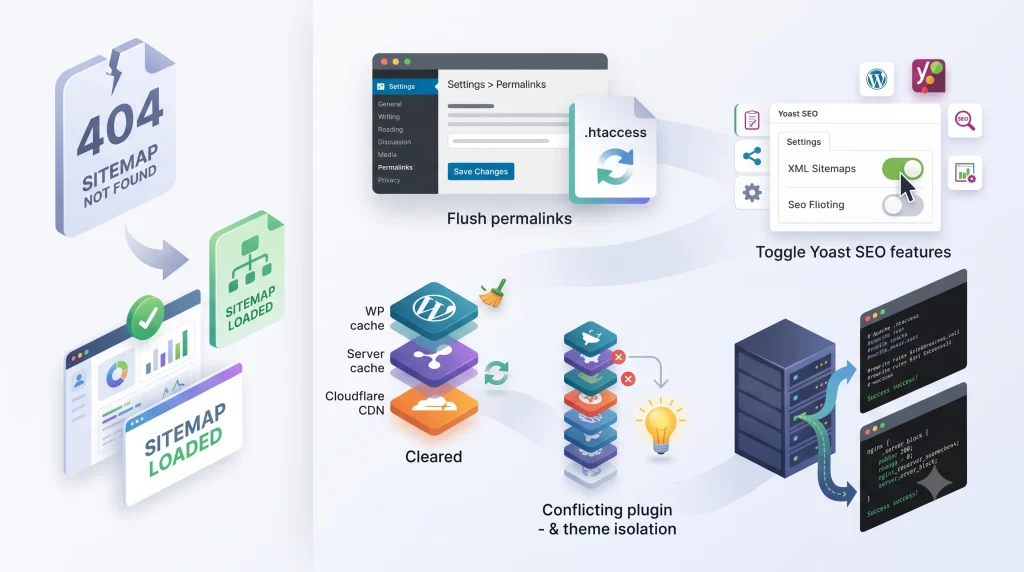
If your Yoast sitemap returns a 404 error, work through these six steps in order:
- Flush WordPress permalinks: Go to Settings > Permalinks and click Save Changes without changing your current permalink structure.
- Toggle Yoast XML sitemaps: Go to Yoast SEO > Site features, turn off XML sitemaps, save, then enable the feature again and save.
- Clear every relevant cache: Purge your WordPress cache, server-level cache, and CDN cache. Clear object cache only if your setup requires it.
- Check for plugin or theme conflicts: Temporarily deactivate plugins that can affect caching, redirects, security, or URL routing.
- Check your server rewrite rules: Apache sites should have the standard WordPress rewrite rules in .htaccess, while Nginx sites need an appropriate try_files configuration.
- Test the sitemap again: Open https://example.com/sitemap_index.xml in a private browser window. Once it works, verify the URL in Google Search Console.
2. What Causes the Yoast SEO Sitemap 404 Error
2.1 When Permalinks Fall Out of Sync
WordPress relies on rewrite rules to turn clean URLs into something it can actually process – and Yoast’s sitemap depends entirely on this system. The problem is, those rules can fall out of sync after a plugin update, theme switch, or migration, even while the rest of your site loads fine. That’s exactly why flushing permalinks is the first thing to try: resaving the settings forces WordPress to rebuild its rewrite rules without touching your URL structure.
2.2 When Your Server Configuration Gets in the Way
Apache and Nginx handle URL routing differently, so a misconfigured server can quietly block sitemap requests before they even reach WordPress. On Apache, .htaccess typically rewrites requests that don’t match a real file or directory to index.php, allowing WordPress to process the request. Nginx does not use .htaccess; instead, its server-block configuration uses directives such as try_files to route requests through WordPress.
This is one reason sitemap errors can appear after a server migration. The WordPress installation may remain unchanged, but the new server may have different rewrite rules, PHP settings, or caching configurations.
2.3 When Cache Locks In a Stale 404
Caching creates a strange scenario where the sitemap technically works, but visitors and search engines still get a 404. It usually happens like this: a cache layer catches the sitemap during a brief outage, saves that 404 response, and keeps serving it long after the real issue is fixed.
This can happen at multiple levels, including WordPress page-cache plugins, server-side caching, reverse proxies such as Varnish, or your CDN. Object caching systems such as Redis work differently and are less likely to be the direct cause of a sitemap 404.
2.4 When Another Plugin Blocks the Sitemap
Other plugins can interfere with Yoast SEO’s sitemap functionality, modifying rewrite rules, redirecting .xml requests, or adding security restrictions that block the sitemap outright, the usual suspects: redirection, security/firewall, caching, and other SEO or sitemap plugins.
Running two SEO plugins that each try to generate a sitemap is a common source of confusion. Custom code in a theme that intercepts .xml requests can cause the same problem.
3. A Few Things to Check First
3.1 Back Up Your Site First
Before touching .htaccess, Nginx, or plugin settings, back up the full site – both the database (posts, settings, users, plugin data) and the files (themes, plugins, wp-content, core files). Server-side edits carry real risk: one typo in .htaccess can trigger a 500 error, and a bad Nginx config can stop the server from reloading at all.
3.2 Make Sure You’re Checking the Right Sitemap URL
Yoast SEO uses sitemap_index.xml for its XML sitemap, while WordPress also provides a native sitemap at wp-sitemap.xml. These are separate sitemap systems, so a working wp-sitemap.xml does not confirm that Yoast’s sitemap is working.
If Yoast is active, test sitemap_index.xml specifically. And open it in a private/incognito window – that rules out browser extensions, logged-in sessions, or local cache skewing the result.
4. Step-by-Step Guide: How to Fix Yoast SEO Sitemap 404 Error
4.1 Flush WordPress Permalinks
This is the safest fix, so start here.
Go to Settings > Permalinks in your WordPress dashboard. You do not need to change anything. Scroll down and click Save Changes. This forces WordPress to regenerate its rewrite rules. On Apache hosting, it can also update the rewrite section in .htaccess, provided WordPress has permission to write to the file.
Once saved, open a private or incognito browser window and check:
https://example.com/sitemap_index.xml
If the sitemap loads correctly, stale rewrite rules were likely causing the 404 error. It is also a good idea to open a regular post or page to make sure your site’s other URLs are still working properly.
4.2 Toggle the Yoast XML Sitemap Feature
If the sitemap is still returning a 404, try disabling and re-enabling Yoast SEO’s XML sitemap feature.
Go to Yoast SEO > Site features in your WordPress dashboard. Find the XML sitemaps option, turn it off, and save the changes. Then turn the feature back on and save again.
The exact menu wording may vary slightly depending on your Yoast SEO version, so look for the sitemap setting within the Site features section.
Disabling and re-enabling the feature can refresh Yoast SEO’s sitemap settings and may resolve issues caused by stale or incorrect configuration.
A working Yoast sitemap should display a sitemap index containing separate sitemap files for posts, pages, categories, and other content types enabled on your website.
4.3 Clear Every Caching Layer
Sometimes WordPress and Yoast SEO work correctly, but an outdated cache still serves the previous 404 response. This is why clearing only your WordPress cache may not be enough.
Clear your WordPress cache using an option such as “Clear Cache” or “Purge Cache”.
Check whether your hosting provider uses server-level caching or a reverse proxy such as Varnish. If so, purge that cache separately.
If your website uses Cloudflare or another CDN, purge the relevant cache there as well. Avoid creating broad cache rules unless you understand how they will affect the rest of your website.
You can also exclude sitemap URLs from page caching. Files such as /sitemap_index.xml and the individual sitemap files linked from it generally do not need to be cached in the same way as regular website content.
If your site uses Redis or another object cache, you can clear it if you suspect stale WordPress data, but this should not be your first step. Object caching is different from full-page caching and is less likely to be the direct cause of a sitemap 404.
After purging the relevant caches, open the sitemap again in an incognito window.
4.4 Isolate Plugin and Theme Conflicts
If the sitemap still isn’t loading after clearing caches, another plugin or your theme might be interfering with it – this is worth ruling out before touching any server files.
Go to Plugins in your WordPress dashboard and temporarily deactivate all plugins except Yoast SEO. Test the sitemap URL again. If it loads correctly, reactivate the other plugins one at a time, testing the sitemap after each one, until you find the plugin causing the conflict.
If disabling plugins doesn’t fix it, the theme itself could be the source – switch temporarily to a current default WordPress theme and test again.
Once you’ve identified the conflicting plugin or theme, you can decide whether to look for an alternative, contact its developer, or keep it disabled if it’s not essential.
4.5 Fix Apache Rewrite Rules via .htaccess
If the sitemap still returns a 404, the problem may be related to your server configuration. On Apache hosting, .htaccess controls important rewrite rules that WordPress relies on.
A standard WordPress .htaccess block looks like this:
# BEGIN WordPress
<IfModule mod_rewrite.c>
RewriteEngine On
RewriteBase /
RewriteRule ^index\.php$ – [L]
RewriteCond %{REQUEST_FILENAME} !-f
RewriteCond %{REQUEST_FILENAME} !-d
RewriteRule . /index.php [L]
</IfModule>
# END WordPress
This configuration tells Apache to rewrite requests that do not match an existing file or directory to index.php, allowing WordPress to handle the request and Yoast SEO to generate the appropriate sitemap response.
Before making any changes, create a backup of your existing .htaccess file. You can access it through your hosting File Manager, FTP, SFTP, or SSH. The file is normally located in your WordPress root directory.
Do not simply replace the entire file with the standard WordPress block. Your existing .htaccess may contain custom redirects, security rules, or hosting-specific configurations that need to remain intact.
After correcting the rewrite rules, clear your website’s caches and test the sitemap URL again.
If your website suddenly returns a 500 Internal Server Error, restore the .htaccess backup immediately. If you are unsure which rule is causing the problem, contact your hosting provider rather than continuing to edit the file unthinkingly.
4.6 Fix Nginx Server Block Configurations
Nginx handles URL routing differently from Apache and does not use .htaccess. Instead, WordPress routing is configured through the Nginx server block.
A typical WordPress configuration uses:
location / {
try_files $uri $uri/ /index.php?$args;
}
The try_files directive first checks whether the requested URL corresponds to an existing file or directory. If it does not, Nginx passes the request to index.php. This fallback allows WordPress and plugins such as Yoast SEO to process dynamic URLs, including sitemap requests.
Nginx configurations vary considerably between hosting providers. Managed WordPress hosts may also use custom configurations that should not be modified manually.
If you manage your own server, test the configuration before applying any changes:
sudo nginx -t
Only reload Nginx after the configuration test completes successfully:
sudo systemctl reload nginx
The exact service command may vary depending on your operating system and server setup.
Once the configuration has been reloaded, clear the relevant caches and test the sitemap URL again.
If the routing looks correct, check the Nginx and PHP-FPM logs for errors that could prevent WordPress from processing the sitemap request. Depending on the server configuration, PHP-FPM issues may result in 502 or 503 responses rather than a 404.
5. Common Mistakes to Avoid
5.1 Avoid Unnecessary Duplicate Sitemap Systems
Running multiple sitemap systems can make troubleshooting more confusing, especially after switching SEO plugins or changing your site’s SEO setup. The result is confusion: which one should you actually submit to Google?
Avoid adding unnecessary redirects between sitemap endpoints just to consolidate them. When a sitemap URL genuinely needs to change during a migration or SEO configuration change, handle the redirect deliberately and verify the final HTTP response.
5.2 Don’t Let Caching Serve a Stale Sitemap
Caching a sitemap is not automatically a problem. The issue occurs when a cache continues serving an outdated 404 response or an old version of the XML after the underlying problem has been fixed.
If your caching plugin, hosting platform, or CDN aggressively caches sitemap URLs, review its cache rules and purge behaviour. You can exclude sitemap_index.xml and the individual sitemap URLs from page caching when necessary, particularly if cached responses have caused sitemap errors on your site.
The goal is not to prevent every sitemap response from being cached. It is to make sure search engines receive a valid, up-to-date response when they request the sitemap.
5.3 Test on Staging Before Editing Server Files
Editing .htaccess or Nginx config directly on a live site is one of the fastest ways to turn a small sitemap issue into a full site outage. A backup (see section 4.1) protects your data, but it won’t stop the site from going down mid-edit.
Where possible, test config changes on staging first. If staging isn’t an option, at least keep the original file open in a separate tab so you can paste it back immediately if something breaks.
6. When the Basic Fixes Don’t Work
6.1 Sitemap Works Sometimes, Fails Other Times
On larger sites, generating sitemap files can put more load on the server. Resource limits, PHP memory constraints, timeouts, or other request-handling issues can cause intermittent failures, particularly when the site contains a large amount of content.
Yoast already splits large sites into multiple sitemap files rather than a single massive document, which helps. If it’s still too heavy for your server, you can lower the number of entries per file using this filter:
add_filter( ‘wpseo_sitemap_entries_per_page’, function() {
return 500;
} );
Add this filter through a site-specific plugin or a reputable code snippets tool rather than editing your theme’s functions.php directly. This keeps the customization separate from the theme and reduces the risk of losing it during a theme change.
There’s a trade-off here: fewer entries per file means lighter individual requests, but more files overall. Test different values rather than guessing. Check your server’s error logs before increasing the PHP memory limit. A higher memory limit may help when the site genuinely needs more resources, but it should not be treated as the default solution.
6.2 Sitemap Loads But Shows an XML Parsing Error
This is a different beast from a 404 – the sitemap is loading, but something is corrupting it before it reaches the browser as valid XML.
The usual cause is stray output getting inserted before the XML starts: a stray blank line in functions.php, a PHP warning, a debug message, or unexpected HTML from a plugin. Even unexpected whitespace or output before the XML declaration can cause parsing problems.
Check your PHP error logs and any recently edited theme or plugin files. And turn off on-screen PHP error display on production – if you need to see errors, do it in the log, not the browser.
6.3 Google Search Console Still Says “Couldn’t Fetch”
Before taking further action, confirm that the sitemap returns a successful response when accessed directly. If it works correctly, give Google some time to recrawl it because Search Console reporting can lag behind changes.
Google’s reporting sometimes lags behind reality. There can be a delay between you fixing the issue and Googlebot actually revisiting the sitemap, so Search Console’s status might not update right away.
Once you’ve confirmed it’s working, go ahead and resubmit the URL. Just don’t resubmit it repeatedly every few minutes, hoping to speed things up – fix the root cause, then give Google some time to catch up on its own.
7. Frequently Asked Questions (FAQ)
1. Does updating Yoast SEO cause sitemap 404 errors?
A Yoast SEO update can coincide with a sitemap 404, but the update is not always the direct cause. Rewrite rules, caching, plugin conflicts, or server configuration may be responsible. Start by flushing your WordPress permalinks and testing the sitemap before troubleshooting further.
2. Should I use the Yoast sitemap or WordPress’s wp-sitemap.xml?
Yoast SEO generates its own sitemap at sitemap_index.xml, while WordPress includes a native sitemap at wp-sitemap.xml. You generally do not need to submit both sitemap systems. If you use Yoast SEO, its sitemap index is usually the sitemap you would submit to Google Search Console.
3. Do I need to resubmit my sitemap to Google Search Console after fixing a 404?
Resubmitting the working sitemap is recommended if Google Search Console previously reported a persistent sitemap fetch error. Google can automatically discover and revisit sitemaps, but resubmitting provides a clear way to confirm that the corrected sitemap is now being processed.
4. Does a Yoast sitemap 404 error hurt SEO rankings?
A sitemap 404 does not automatically cause an immediate drop in rankings. Search engines can still discover pages through internal links and other signals. However, fixing the issue quickly is important for large websites or sites that rely heavily on XML sitemaps for URL discovery.
5. Is Yoast SEO free, or do I need the premium version to fix sitemap issues?
The free version of Yoast SEO already includes full XML sitemap functionality, so a sitemap 404 doesn’t require upgrading to Premium to fix. If you’re looking to save on other Premium WordPress themes and plugins instead, PluginPro offers affordable access options, including a $4.5 per-item plan and membership plan for users who need multiple products.
8. Conclusion
A Yoast sitemap 404 is usually a routing, caching, or configuration problem – not a sign that your entire SEO setup is broken. Start with the WordPress-level fixes: flush the permalinks, toggle the Yoast XML sitemap feature, and clear all relevant cache layers. These three steps alone resolve most sitemap issues without needing server access.
If the sitemap still isn’t loading, rule out plugin or theme conflicts before moving on to the server. Only after that should you dig into rewrite rules – Apache sites need a working WordPress block in .htaccess, while Nginx sites rely on a proper try_files fallback. For larger websites, it’s also worth checking PHP memory limits, the load on sitemap generation, and how many URLs each sitemap file handles.
The key to fixing a Yoast SEO sitemap 404 error is to work through the possible causes in order, starting with WordPress settings before moving on to caching and server configuration. Once sitemap_index.xml consistently returns valid XML, verify the sitemap in Google Search Console and monitor the site for any further crawling errors.
For more practical WordPress troubleshooting tutorials, SEO guides, and useful plugin resources, explore the PluginPro resource guides and downloads for additional tools and solutions.