When Divi Builder is not loading, you may be unable to open the Visual Builder, edit a page, or access its modules. The problem is often related to plugin conflicts, caching, outdated software, JavaScript errors, or server settings. In most cases, you can identify and fix the issue without rebuilding the page.
This guide walks you through nine troubleshooting steps, starting with simple fixes such as clearing your cache and checking for plugin conflicts, before moving on to JavaScript, PHP, theme, and hosting issues.
1. What Is the Divi Builder Not Loading Error?
Divi Builder may get stuck on the loading screen, open to a blank screen, or fail to load the modules you need to edit a page. The problem can appear after a Divi or WordPress update, a plugin change, a change to your caching configuration, or a change to your hosting environment.
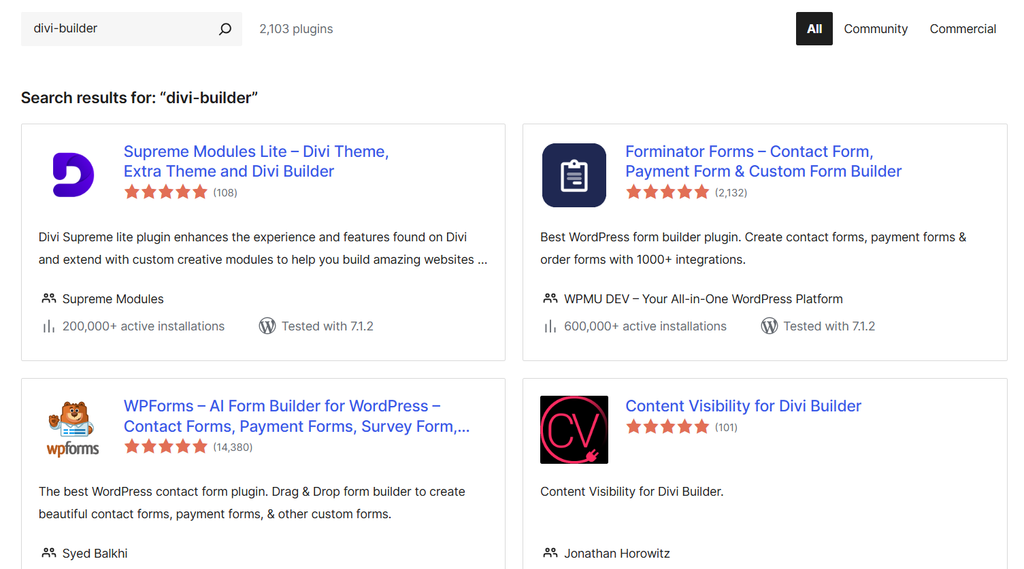
The steps below help you narrow down the cause, starting with common issues such as caching and plugin conflicts before moving on to JavaScript, PHP, and hosting settings.
2. What You Need Before Getting Started
Before troubleshooting Divi Builder not loading, make sure you have the following:
- WordPress Administrator Access: You need administrator access to manage plugins, themes, WordPress updates, and Divi settings.
- Hosting or Server Access: You may need access to your hosting panel to check PHP settings, server resources, or error logs.
- An Active Divi License: Make sure Divi is linked to an active Elegant Themes account to receive updates and access support.
- A Recent Website Backup: Create a backup before making major changes, such as disabling plugins, switching themes, or changing server settings.
- Updated WordPress and Divi: Make sure WordPress, Divi, your plugins, and PHP are up to date to reduce compatibility issues and unexpected errors.
3. Step-by-Step Guide to Fix Divi Builder Not Loading
The best way to fix Divi Builder loading issues is to start with simple solutions before moving on to more advanced troubleshooting. Follow the steps below in order and test the Divi Visual Builder after each change to help identify the cause.
Step 1 – Clear Your Browser Cache and WordPress Cache
A cached version of your website may prevent Divi from loading its latest files correctly. You can also open the page in a private or incognito window to check whether the problem is related to your browser.
Then clear any cache from your WordPress caching plugin, hosting provider, or CDN. After clearing the caches, reload the page and try opening the Divi Visual Builder again.
Step 2 – Disable Plugins to Check for Conflicts
Plugin conflicts are a common reason why Divi Builder may fail to load. Plugins that modify JavaScript, CSS, caching, security, or website performance can sometimes interfere with the Visual Builder.
To find out whether a plugin is causing the problem, temporarily deactivate your plugins and try opening the Divi Visual Builder again. If it loads normally, reactivate the plugins one at a time and test Divi after each activation. When the problem returns, the last plugin you activated is the most likely source of the conflict.
CCommon problem areas include caching, JavaScript optimisation, security, image optimisation, and custom-code plugins. Once you identify the conflicting plugin, check for an update, adjust its settings, or contact the developer for support.
Step 3 – Update Divi, WordPress, and Your Plugins
Outdated versions of Divi, WordPress, or other plugins can cause compatibility problems and prevent the Visual Builder from working correctly. Check your WordPress dashboard for available updates and make sure Divi and your active plugins are up to date.
Always create a backup before applying major updates. If the Divi loading problem started immediately after an update, check the plugin or theme changelog and support documentation for known compatibility issues.
Step 4 – Increase the WordPress PHP Memory Limit
A low PHP memory limit can cause Divi Builder to load slowly, freeze, or fail to load, especially on websites with large pages, complex layouts, or many active plugins.
Check your current PHP memory limit through your hosting panel or WordPress configuration. If the limit is too low, contact your hosting provider or increase it according to your hosting environment. After making the change, clear your cache and try opening the Divi Visual Builder again.
Step 5 – Check for JavaScript Errors
JavaScript errors can prevent the Divi Visual Builder from loading correctly. Plugin conflicts, custom code, browser extensions, or JavaScript optimisation settings may cause them.
To check for these errors, open your browser’s Developer Tools and select the Console tab. Look for red error messages when you try to open the Divi Visual Builder. If an error points to a specific plugin, script, or custom code, temporarily turn it off or review the code before testing the builder again.
Step 6 – Disable JavaScript optimisation temporarily
Performance and caching plugins can improve website speed, but aggressive JavaScript optimisation may interfere with Divi. Features such as minification, file combination, deferral, and delayed JavaScript execution can sometimes prevent the Visual Builder from loading correctly.
Temporarily turn off these JavaScript optimisation settings and clear your website caches. Then reload the Divi Visual Builder. If the builder works normally, re-enable the optimisation settings one at a time to identify which setting is causing the conflict.
Step 7 – Test Your Website With a Default WordPress Theme
Custom theme code or modifications can sometimes interfere with Divi Builder, particularly when you are using Divi Builder with a third-party WordPress theme.
Before changing your theme, create a backup of your website. If you are using Divi Builder with a third-party theme, temporarily switching to a default WordPress theme can help determine whether the theme is causing the conflict. If the builder works normally with the default theme, review the original theme’s custom code, scripts, and compatibility settings to find the source of the problem.
Step 8 – Check Your Hosting and PHP Configuration
If Divi Builder still does not load after checking your plugins, JavaScript, and theme, the problem may be related to your hosting environment. Limited server resources, PHP settings, firewall restrictions, or blocked requests can prevent Divi from loading correctly.
Check your PHP version, execution limits, available server resources, and server error logs. If you do not have access to these settings, contact your hosting provider and ask them to check for server-side errors, firewall restrictions, or blocked requests related to Divi.
Step 9 – Use WordPress Troubleshooting Tools
If you still cannot identify the cause, WordPress troubleshooting tools can help you test plugins and themes without affecting what normal visitors see on your website.
For example, Health Check & Troubleshooting lets you resolve plugin and theme conflicts in a controlled environment. This can be especially useful if your website has many active plugins and manually deactivating them one by one would take too much time.
4. Best Practices and Tips
Once Divi Builder is working again, a few maintenance habits can help prevent similar problems in the future.
4.1 Keep Divi and WordPress Updated
Check for updates to Divi, WordPress, and your active plugins regularly. Before installing a major update, create a backup and test important pages afterwards to make sure the Visual Builder and other key features still work as expected.
4.2 Remove Plugins You Do Not Need
If you are not using a plugin, consider deactivating or removing it. Keeping fewer plugins makes it easier to identify conflicts when something goes wrong. For the plugins you keep, choose ones that are actively maintained and compatible with your WordPress setup.
4.3 Be Careful With Caching and Optimisation
If you use a caching or performance plugin, avoid enabling every optimisation option at once. After changing JavaScript or CSS settings, clear your caches and test the Divi Visual Builder. If a problem appears, you can then identify which setting caused it.
4.4 Use a Staging Website for Major Changes
If your hosting provider offers a staging environment, use it to test major updates, new plugins, or custom code before applying them to your live website. This gives you a safer place to identify compatibility problems without affecting visitors.
4.5 Keep Recent Backups
Create regular backups of your WordPress website, especially before updating Divi, changing plugins, modifying your theme, or adjusting server settings. Make sure you also know how to restore a backup if an update or configuration change causes a problem.
5. Common Problems and Fixes
The symptoms can often give you a clue about what is causing the problem. Use the examples below to narrow down where to start.
5.1 Divi Builder Gets Stuck While Loading
If the loading screen keeps appearing even after opening the Visual Builder, start by clearing your cache and checking your recently installed plugins. JavaScript optimisation and server resource limitations can also cause the builder to remain stuck.
5.2 Divi Builder Opens to a Blank Screen
A blank screen usually points to a JavaScript, plugin, theme, or server-side problem. Check the browser Console for errors and test the site with plugins temporarily disabled. If the problem started after a theme or plugin change, test that component first.
5.3 Divi Builder Stops Working After a Plugin Update
If Divi stops working immediately after a plugin update, the updated plugin may be conflicting with Divi or your current WordPress version. Check whether another update is available, review the plugin’s changelog or support information, and temporarily turn off the plugin if necessary.
5.4 Divi Builder Loads Slowly
Slow loading can be related to large pages, limited server resources, a high number of active plugins, or aggressive caching and JavaScript optimisation. Check your PHP resources and optimisation settings first, then test whether reducing unnecessary plugins improves the builder’s performance.
5.5 Divi Builder Works in Only One Browser
If Divi works in one browser but not another, the problem is more likely to be related to browser cache, extensions, or browser-specific settings. Open the site in a private window first. If the builder is working there, clear the affected browser’s cache and turn off extensions one at a time.
6. Recommended Plugins and Tools for Divi
The right WordPress tools can make it easier to maintain your site and troubleshoot Divi Builder problems. You do not need to install every tool listed below. Choose the ones that match your website’s needs and the type of problem you are trying to diagnose.
6.1 WP-Optimise
WP-Optimise provides caching and database optimisation features that can help improve WordPress performance. However, some JavaScript optimization settings may interfere with Divi’s Visual Builder.
If you use WP-Optimise, test Divi after changing its JavaScript optimisation settings. If the builder stops loading, temporarily turn off the affected optimisation features and test again.
6.2 Query Monitor
Query Monitor is useful when you need more detailed information about what is happening behind the scenes in WordPress. It can help developers inspect PHP errors, database queries, hooks, and other technical issues.
This tool is particularly useful when a Divi problem appears to be related to a plugin, theme, or server-side error that cannot be identified through the browser alone.
6.3 Health Check & Troubleshooting
Health Check & Troubleshooting can help you test whether a plugin or theme is causing a conflict. Its troubleshooting features allow you to test your WordPress setup with plugins or themes temporarily disabled without changing what regular visitors see.
This can be helpful when Divi works normally after certain plugins or a theme are disabled, but you need to identify the specific component causing the problem.
6.4 Hosting Support Tools
Your hosting provider may give you access to server logs, PHP settings, caching controls, and staging environments. These tools are useful when the problem appears to be related to server resources, PHP configuration, firewall rules, or other hosting-level restrictions.
If you have already checked your plugins and WordPress settings but Divi still does not load, your hosting support team may be able to identify server-side errors that are not visible from the WordPress dashboard.
7. FAQs
1. Why is my Divi Builder not loading?
Divi Builder may fail to load because of plugin conflicts, outdated software, browser cache, JavaScript errors, low PHP memory, or hosting configuration issues. Start with simple checks, such as clearing your cache and temporarily turning off plugins.
2. How do I fix the Divi Builder stuck loading?
Start by clearing your browser and WordPress cache, then check for plugin conflicts. If the problem continues, test your JavaScript optimisation settings, update Divi and WordPress, and check your site’s PHP and hosting configuration.
3. Can a plugin stop Divi Builder from working?
Yes. Plugins that modify JavaScript, CSS, caching, security, or page editing features can sometimes conflict with Divi. Temporarily deactivate your plugins and reactivate them one at a time to identify the source of the problem.
4. Does clearing the cache fix Divi Builder problems?
Clearing the cache can fix Divi loading problems when outdated or cached files prevent the latest Divi scripts and styles from loading correctly. Clear your browser, WordPress, hosting, and CDN caches before testing the Visual Builder again.
5. How much does PluginPro cost?
PluginPro is available for $4.50 through the website, with a Member plan also available. Check the available plan options to choose the one that best fits your WordPress plugin needs.
8. Conclusion
When Divi Builder is not loading, start with the simplest checks and work through the possible causes one by one. Clearing caches, testing plugins, checking JavaScript errors, and reviewing your PHP and hosting settings can help you find the source without rebuilding your pages.
Keeping your WordPress plugins organised can also make future troubleshooting easier. If you want to simplify how you manage your WordPress plugins, take a look at what PluginPro offers.