
A fast-loading website is essential for every WooCommerce store. It improves user experience, increases conversion rates, and helps your pages rank higher on Google. If you’ve noticed slow loading times or poor Core Web Vitals, you may be wondering how to fix the WoodMart speed issue without changing your theme.
The good news is that WoodMart is already built with performance in mind. In most cases, the problem isn’t the theme itself but factors like oversized images, too many plugins, slow hosting, or unoptimized settings. By making a few strategic improvements, you can significantly boost your PageSpeed Insights score and create a smoother shopping experience for your customers.
In most cases, you can fix WoodMart speed issues by updating the theme, enabling its built-in performance features, optimizing images, reducing unnecessary plugins, using a caching solution, and choosing reliable hosting. These improvements not only increase your PageSpeed Insights score but also enhance Core Web Vitals and deliver a faster shopping experience for your visitors.
In this guide, you’ll learn 10 practical ways to fix WoodMart speed issues, improve Core Web Vitals, and boost your WooCommerce store’s overall performance.
1. What Causes WoodMart Speed Issues?
Before you try to fix the WoodMart speed issue, it’s important to identify what’s slowing your website down. Here are the most common causes.
- Large product images: High-resolution images increase page size and slow loading times.
- Too many plugins: Every active plugin consumes server resources and may add extra CSS or JavaScript files.
- Poor hosting: Slow servers lead to high Time to First Byte (TTFB), affecting overall performance.
- Unoptimized CSS and JavaScript: Render-blocking files delay page rendering and reduce PageSpeed scores.
- No caching: Without caching, WordPress generates every page dynamically, increasing server load.
- Third-party scripts: Analytics tools, chat widgets, and marketing pixels can add unnecessary HTTP requests.
Understanding these issues helps you prioritize the optimizations that will have the biggest impact.

2. Check Your Website’s Current Performance
Before making any changes, test your website to establish a baseline. This allows you to measure improvements after each optimization.
Some of the best speed-testing tools include:
- Google PageSpeed Insights – Measures Core Web Vitals and provides optimization suggestions.
- GTmetrix – Shows waterfall charts and identifies slow-loading resources.
- WebPageTest – Tests performance from different locations and devices.
Focus on these key metrics:
| Metric | Recommended Value |
| Largest Contentful Paint (LCP) | Under 2.5 seconds |
| Interaction to Next Paint (INP) | Under 200 ms |
| Cumulative Layout Shift (CLS) | Under 0.1 |
| Time to First Byte (TTFB) | Under 800 ms |
Rather than aiming for a perfect 100/100 score, prioritize improving real-world loading speed and user experience.
3. 10 Effective Ways to Fix WoodMart Speed Issue
3.1 Update WoodMart to the Latest Version
One of the easiest ways to fix the WoodMart speed issue is to make sure you’re using the latest version of WoodMart, WordPress, WooCommerce, and all required plugins.
Theme updates often include:
- Performance improvements
- Reduced CSS and JavaScript files
- Compatibility with the latest WordPress releases
- Bug fixes that improve loading speed
Before updating, create a full website backup and test updates on a staging site whenever possible. Keeping your site up to date ensures you’re benefiting from the latest optimizations released by the developers.
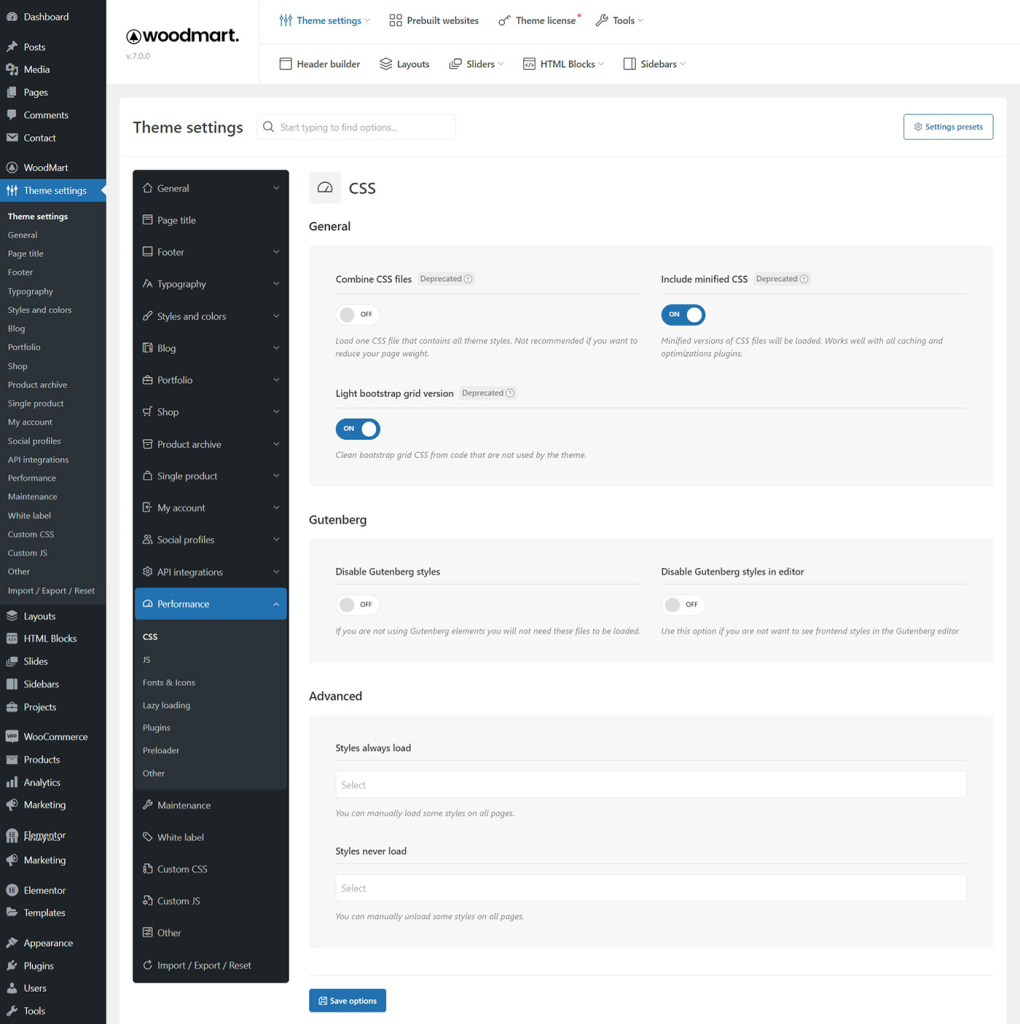
3.2 Enable WoodMart Performance Settings
WoodMart includes several built-in performance features that many users overlook. Enabling these settings can noticeably improve loading speed without installing additional plugins.
Review the following options in the theme settings:
- Enable CSS and JavaScript minification to reduce file sizes.
- Turn on lazy loading for images and galleries.
- Remove unused CSS to eliminate unnecessary code.
- Delay non-essential JavaScript execution to improve initial page rendering.
- Host Google Fonts locally and remove unused font weights to reduce external requests.
These built-in optimizations are specifically designed to help fix WoodMart speed issue while maintaining your site’s appearance and functionality.
3.3 Optimize Product Images for WoodMart
Images are often the largest files on a WooCommerce website. Optimizing them is one of the most effective ways to fix WoodMart speed issues.
Follow these best practices:
- Resize images before uploading.
- Compress files without noticeably reducing quality.
- Use modern formats like WebP or AVIF.
- Enable responsive image sizes.
- Lazy load images below the fold.
As a general guideline, keep most product images below 200 KB whenever possible. Smaller image files reduce page weight and improve Largest Contentful Paint (LCP), one of Google’s most important ranking signals.
3.4 Remove Unnecessary Plugins
Plugins are useful, but installing too many can negatively impact website performance. Every plugin adds code that WordPress must load, increasing server processing time.
Review your installed plugins and remove anything you no longer need, especially:
- Duplicate SEO plugins
- Unused WooCommerce extensions
- Multiple page builder addons
- Heavy social sharing plugins
- Outdated or unsupported plugins
If you’re unsure which plugins are affecting performance, use tools like Query Monitor or your hosting provider’s performance monitor to identify resource-heavy extensions.
A lean plugin setup makes it much easier to fix WoodMart speed issue while improving security and simplifying maintenance.
3.5 Use a Reliable Caching Plugin
Caching is one of the most powerful ways to fix WoodMart speed issue. Instead of generating pages every time a visitor loads your site, caching serves pre-built versions, reducing server workload and improving loading times.
Popular caching plugins compatible with WoodMart include:
- LiteSpeed Cache (ideal for LiteSpeed servers)
- WP Rocket
- FlyingPress
- W3 Total Cache
For the best results, enable:
- Page caching
- Browser caching
- Cache preloading
- GZIP or Brotli compression
- Object caching (if supported by your host)
A properly configured caching plugin can significantly improve Core Web Vitals and help your WooCommerce store load much faster.
3.6 Optimize Your WordPress Database
Your WordPress database grows over time as it stores post revisions, expired transients, spam comments, and WooCommerce session data. If left unchecked, this unnecessary data can slow down your website and make it harder to fix WoodMart speed issues.
Regular database maintenance helps reduce query times and improve overall performance.
You can optimize your database by:
- Deleting post revisions and auto drafts
- Removing expired transients
- Clearing spam and trashed comments
- Cleaning orphaned tables from deleted plugins
- Optimizing database tables
Plugins like WP-Optimize or Advanced Database Cleaner can automate this process. Before making any database changes, always create a backup of your website.
3.7 Reduce Third-Party Scripts
Many WooCommerce stores rely on external services for analytics, advertising, live chat, and marketing. While useful, these scripts often increase page load time because they require additional HTTP requests.
Common examples include:
- Google Analytics
- Google Tag Manager
- Facebook Pixel
- Live chat widgets
- Email marketing popups
- Social media feeds
If you’re trying to fix the WoodMart speed issue, review every third-party script on your website and remove anything that isn’t essential.
For scripts you still need, consider delaying their execution until after the page has loaded or after user interaction. This simple change can improve both your PageSpeed Insights score and Core Web Vitals.
3.8 Upgrade Your Hosting to Improve WoodMart Speed
Even a perfectly optimized website can feel slow if it’s hosted on an underpowered server. If you’ve already optimized your site but still need to fix WoodMart speed issue, your hosting provider may be the limiting factor.
A good WordPress hosting plan should offer:
- NVMe SSD storage
- PHP 8.3 or newer
- HTTP/3 support
- Server-level caching
- Redis Object Cache
- Automatic backups
- High uptime and fast response times
WooCommerce stores handle dynamic content such as shopping carts and customer accounts, so they benefit greatly from quality hosting. Upgrading from low-cost shared hosting to a managed WordPress hosting solution can noticeably reduce Time to First Byte (TTFB) and improve overall site speed.
3.9 Use a Content Delivery Network (CDN)
A Content Delivery Network (CDN) stores copies of your website’s static files on servers around the world. Instead of downloading images, CSS, and JavaScript from your main server, visitors receive them from the nearest CDN location.

Adding a CDN is an effective way to fix WoodMart speed issue, especially if your customers are located in different countries.
Benefits include:
- Faster global loading times
- Reduced server load
- Lower bandwidth usage
- Better scalability during traffic spikes
Popular CDN providers include Cloudflare, Bunny CDN, and QUIC.cloud. Most work seamlessly with WordPress and popular caching plugins.
3.10 Optimize WooCommerce Features
WooCommerce includes dynamic features that can affect performance if they’re not configured carefully. Optimizing these features is another practical way to fix WoodMart speed issues.
Consider the following improvements:
- Disable unnecessary cart fragments if real-time cart updates aren’t required.
- Limit the number of related and upsell products displayed on each page.
- Avoid creating products with hundreds of variations whenever possible.
- Use lightweight product filter plugins.
- Remove WooCommerce widgets you don’t use.
These small adjustments reduce database queries and improve page loading speed without affecting the shopping experience.
4. Recommended Plugins for Improving WoodMart Performance
4.1 WP Rocket
WP Rocket is one of the most popular WordPress caching plugins for improving WoodMart performance. It offers page caching, cache preloading, GZIP compression, delayed JavaScript execution, and CSS optimization to help boost Core Web Vitals and PageSpeed Insights scores.
4.2 FlyingPress
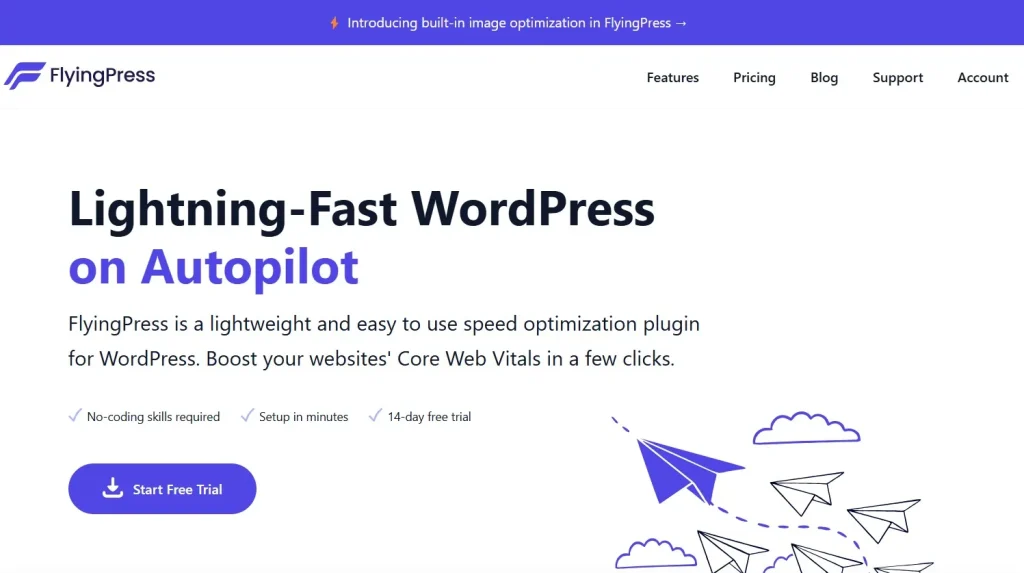
FlyingPress is a lightweight performance optimization plugin designed for WordPress and WooCommerce. It helps optimize CSS, JavaScript, images, fonts, and caching, making it an excellent choice for speeding up WoodMart-powered online stores.
4.3 Perfmatters
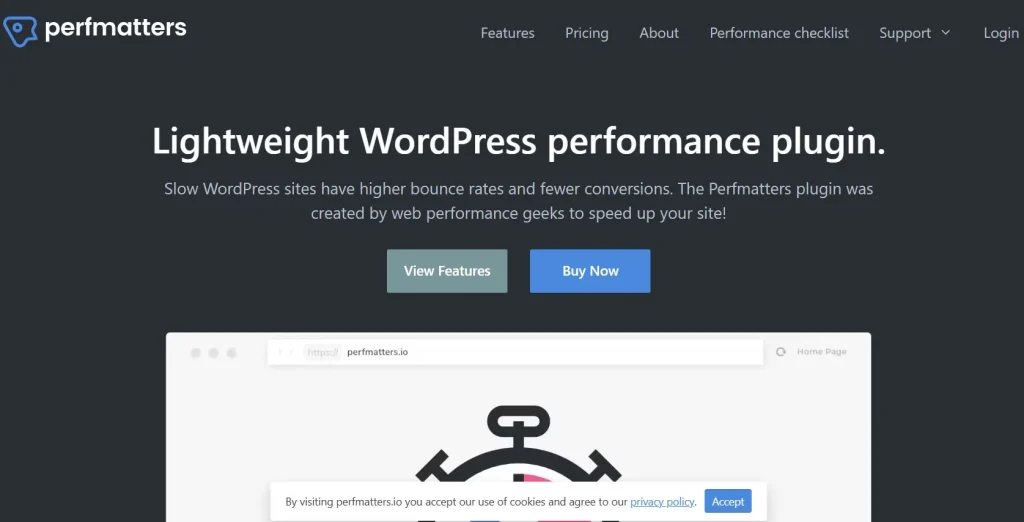
Perfmatters focuses on reducing unnecessary scripts and WordPress bloat. It allows you to disable unused features, manage scripts on individual pages, optimize fonts, and improve loading times without adding unnecessary overhead, making it a great companion to caching plugins for WoodMart.
5. Frequently Asked Questions
1. Is WoodMart a fast WooCommerce theme?
Yes. WoodMart is one of the most optimized premium WooCommerce themes available. Most users who need to fix WoodMart speed issues are dealing with hosting, plugins, images, or third-party scripts rather than problems with the theme itself.
2. Why is my WoodMart website slow?
The most common reasons include oversized images, too many plugins, slow hosting, missing caching, and excessive JavaScript or third-party scripts.
3. Can I achieve a 90+ PageSpeed score with WoodMart?
Yes. Many WoodMart websites score above 90 after optimizing images, enabling caching, removing unused CSS and JavaScript, and using a high-performance hosting provider. However, the final score depends on your site’s complexity and the number of external services it loads.
4. Which caching plugin works best with WoodMart?
LiteSpeed Cache is an excellent option if your server runs LiteSpeed. Otherwise, WP Rocket and FlyingPress are both reliable choices that work well with WoodMart and WooCommerce.
5. How much does WoodMart cost on PluginPro?
PluginPro offers WoodMart through affordable membership plans, giving you access to WoodMart along with many other premium WordPress themes and plugins. Visit PluginPro to view the latest membership options and choose the plan that best suits your needs.
6. Conclusion
If you’re looking to fix the WoodMart speed issue, remember that the theme itself is rarely the problem. Most performance issues come from oversized images, unnecessary plugins, slow hosting, poor caching, or unoptimized WooCommerce settings.
Start by testing your website with PageSpeed Insights or GTmetrix to identify your biggest bottlenecks. Then, apply the optimizations covered in this guide – update WoodMart, enable its built-in performance settings, optimize images, reduce plugins, clean your database, use caching, upgrade your hosting, and add a CDN if needed.
Rather than chasing a perfect PageSpeed score, focus on delivering a fast and responsive shopping experience. A well-optimized WooCommerce store will load faster, improve Core Web Vitals, rank better in search results, and provide a smoother experience that keeps customers engaged and encourages more conversions.
If you’re looking for premium WordPress plugins and WooCommerce tools to further optimize your WoodMart website, explore PluginPro’s collection of trusted solutions. From performance optimization plugins to essential WooCommerce extensions, you’ll find everything you need to build a faster, more efficient online store.