
Installing Yoast SEO is only the first step in optimizing a WordPress website. Once the plugin is active, you’ll need to configure a few key settings to make sure your site is properly prepared for search engines.
If you’re learning how to set up Yoast SEO, you don’t need to change every option available. Start with the basics, including your site information, search appearance, indexing settings, XML sitemap, and social metadata. Then, as you publish new content, use Yoast SEO to optimize individual posts and pages.
This guide covers the main settings worth reviewing after installation, along with a few common mistakes to avoid.
1. Start With Your Yoast SEO General Settings
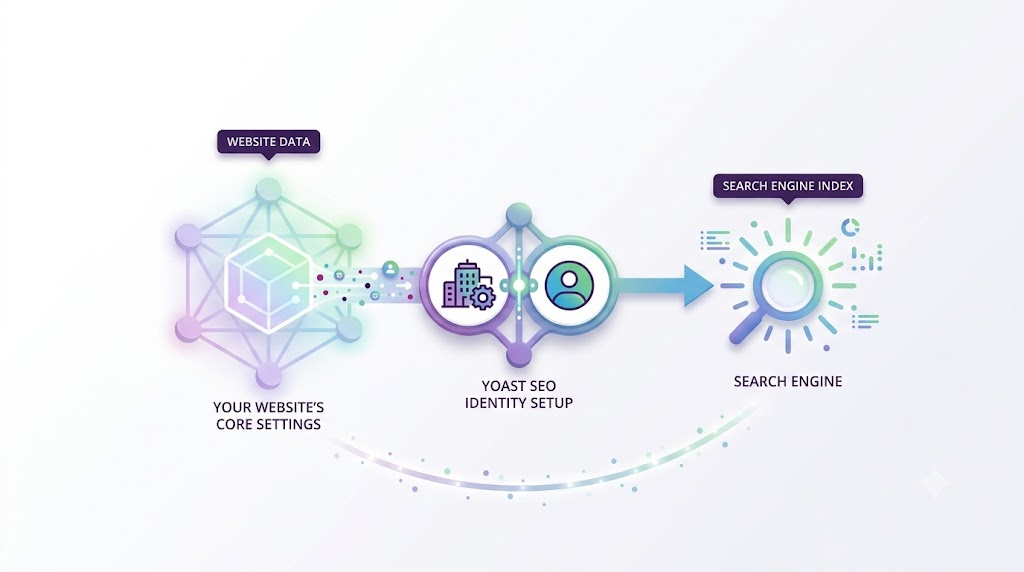
Before optimizing individual pages, make sure Yoast SEO has accurate information about your website. Open the Yoast SEO settings in your WordPress dashboard and review the general configuration.
One of the first things to check is how your website is represented. A company website should generally use the organization option and provide the appropriate organization name and logo. A personal blog, portfolio, or individual website may be better represented by a person.
Also check your website name and make sure it matches your actual branding. Avoid adding keywords to the name just to make it appear more optimized. A clear brand name is more useful than a keyword-stuffed version.
The exact interface may change between Yoast SEO versions, but the underlying purpose of these settings remains similar: giving search engines accurate information about your website and the entity behind it.
2. Configure Search Appearance and Indexing
Search appearance settings determine how different types of WordPress content are handled in search results. Yoast SEO allows you to establish sensible defaults for posts, pages, and other content types instead of configuring every URL individually.
For example, your default SEO title can follow a structure such as:
Post Title | Site Name
This provides a useful starting point, but important pages and articles should still have custom SEO titles when needed. Keep titles descriptive and avoid repeating the same keyword unnecessarily.
Meta descriptions work in a similar way. They should briefly explain what a page offers and give searchers a reason to click. Google may rewrite a meta description depending on the search query, so treat it as useful search-result copy rather than a guaranteed snippet.
You should also review which content types and archives should be available to search engines. Categories can be valuable when they organize useful collections of content, while low-value tags or automatically generated archives may provide little benefit.
Don’t automatically noindex every tag or archive, though. Consider whether each type provides genuine value to users before changing its indexing settings.
3. Check Your XML Sitemap
Yoast SEO can automatically generate XML sitemaps to help search engines discover important URLs on your website. After configuring the plugin, check that the sitemap is working and contains the content types you actually want search engines to discover.
For a typical WordPress website, this may include posts and pages. Depending on the site, products or custom post types may also belong in the sitemap.
Remember that a sitemap is not an instruction to index every URL it contains. Indexing also depends on factors such as the page’s quality, accessibility, internal links, and other technical signals.
3.1 Submit Your Sitemap to Google Search Console
Once you’ve confirmed that your sitemap is working correctly, you can submit it through Google Search Console.
Submitting a sitemap gives Google another way to discover URLs on your website and allows you to monitor potential indexing issues. However, a submitted URL is not automatically guaranteed to be indexed.
Use Search Console alongside your Yoast SEO setup to identify indexing problems and understand how Google is processing your website.
4. Configure Social Media Settings
SEO configuration isn’t limited to traditional search results. Your WordPress content may also be shared through social networks and messaging platforms, so it’s worth reviewing how your pages appear when shared.
Yoast SEO can provide social metadata that helps define the title, description, and image associated with your content.
4.1 Add Your Social Profiles
Add the official social profiles associated with your website, business, or organization.
Make sure the profiles belong to the same brand or entity represented on your website. You don’t need to add every social network; focus on the platforms your audience actually uses.
4.2 Choose a Default Social Image
A default social image can be useful when a post or page does not have a suitable featured image.
Choose an image that represents your brand clearly and works well when displayed as a social preview. For important articles, you can still use custom images that are more relevant to the individual topic.
Social metadata does not directly guarantee higher search rankings, but it can improve how your content is presented when users share it.
5. Improve Readability and Site Navigation
Yoast SEO’s readability analysis can help identify issues such as overly long sentences, difficult paragraphs, or excessive passive voice. These suggestions can be useful during editing, but you don’t need to make every indicator green.
Technical topics sometimes require specific terminology or more detailed explanations. Instead of optimizing for the plugin’s score alone, focus on whether the reader can understand the content easily.
Clear headings, short paragraphs, logical organization, and straightforward language usually create a better reading experience.
Breadcrumbs can also improve navigation, especially on websites with many categories or levels of content. Yoast SEO supports breadcrumb functionality, although implementation can depend on your theme and site configuration.
Before enabling breadcrumbs, check whether your theme or another plugin already provides them to avoid unnecessary duplication.
6. WordPress Tools to Use Alongside Yoast SEO
Yoast SEO handles many important SEO tasks, but it doesn’t need to work alone. Depending on your website’s requirements, other WordPress plugins and themes can support page building, structured content, performance, and site design.
6.1 Elementor Pro
Elementor Pro can be useful if you need more control over page layouts and reusable templates. It allows you to build custom pages and site components visually, which can be especially helpful for business websites, landing pages, and content-heavy sites.
When used alongside Yoast SEO, Elementor Pro can handle much of the visual design while Yoast SEO focuses on search-related settings and content optimization.
6.2 Advanced Custom Fields PRO
Advanced Custom Fields PRO is useful for websites that need to manage structured information beyond standard WordPress fields.
For example, you can create custom fields for product specifications, team member information, event details, property features, or other types of structured content.
This can make larger WordPress websites easier to organize and maintain, particularly when similar information needs to be displayed consistently across multiple pages.
6.3 WP Rocket
Website performance is another area worth considering as part of your overall WordPress setup.
WP Rocket provides caching and other performance optimization features that can help improve loading times and the overall experience for visitors.
If your website is well optimized from an SEO and content perspective but still feels slow, reviewing caching, image optimization, hosting, and other performance factors can be a useful next step.
6.4 Astra
Your WordPress theme also plays a role in the site’s overall design and performance.
Astra is a flexible, lightweight theme that can work well for websites using page builders and other WordPress tools. It can provide a practical foundation for businesses, blogs, portfolios, and other types of websites.
You don’t need all of these tools on every website. Choose plugins and themes based on your site’s actual requirements rather than installing additional products simply because they are popular.
If you’re managing multiple WordPress projects, PluginPro can also provide a convenient way to explore plugins and themes through its membership options.
7. Common Yoast SEO Mistakes to Avoid
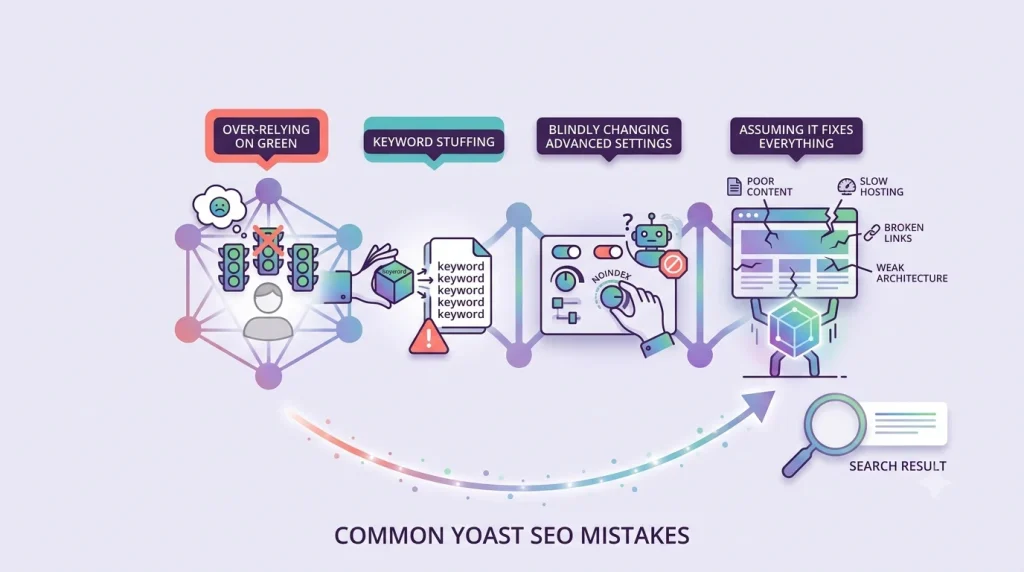
Configuring Yoast SEO is relatively straightforward, but a few common mistakes can reduce the value of the plugin.
Trying to make every indicator green. A green Yoast SEO score does not guarantee high rankings. Use the recommendations as guidance, while prioritizing search intent, content quality, technical accessibility, and user experience.
Stuffing keywords into your content. Repeating the target phrase excessively can make your writing unnatural. Use your primary keyword where it makes sense and include related terms naturally.
Changing advanced settings without a reason. Some Yoast SEO settings can affect how search engines interact with your website. If you don’t understand what a setting does, don’t change it simply because a generic tutorial recommends doing so.
Assuming Yoast SEO fixes every SEO problem. Yoast SEO can help with metadata, sitemaps, structured data, and content optimization, but it cannot automatically fix poor content, slow hosting, broken internal links, weak site architecture, or every technical SEO issue.
8. Frequently Asked Questions
1. What is the best way to set up Yoast SEO?
Start with your site information, search appearance, indexing preferences, XML sitemap, and social settings. Then optimize important posts and pages individually instead of changing every available option.
2. Do I need to configure every Yoast SEO setting?
No. Most websites don’t need to modify every setting. Focus on the options that affect your site’s identity, search appearance, indexing, metadata, and content structure.
3. Does Yoast SEO guarantee higher Google rankings?
No. Yoast SEO provides tools and recommendations for optimizing WordPress content and technical SEO elements, but it cannot guarantee rankings. Search performance depends on factors such as content quality, relevance, competition, site architecture, technical accessibility, and user experience.
4. Can I use another SEO plugin with Yoast SEO?
You should generally avoid running multiple SEO plugins that perform the same core functions because they can create conflicting metadata or settings. If you decide to switch from Yoast SEO to another SEO plugin, migrate your settings carefully and deactivate the previous SEO plugin after the transition.
5. How much does Yoast SEO cost?
Yoast SEO offers free and paid options, with premium features depending on the plan you choose. If you’re looking for premium WordPress themes and plugins without purchasing each one individually, PluginPro offers affordable options, including a $4.5 per item option and membership plans for users who need multiple products. Check the PluginPro pricing to explore the available options.
9. Conclusion
Setting up Yoast SEO doesn’t require changing every available option or trying to achieve a perfect optimization score. Start with the essentials, including your site information, search appearance, indexing preferences, XML sitemap, and social settings. Then focus on optimizing individual pages with clear titles, useful meta descriptions, relevant keyphrases, and helpful internal links.
As your WordPress site grows, review your search performance and indexing data regularly. When combined with quality content, a well-structured website, and the right supporting tools, Yoast SEO can provide a solid foundation for a practical WordPress SEO workflow.