When someone registers on a BuddyBoss website, they may need to activate their account through email before they can access the community. If the activation email never arrives or ends up in spam, new users may be unable to complete registration.
BuddyBoss does not always cause problems. WordPress email configuration, SMTP settings, hosting restrictions, plugin conflicts, and domain authentication can all affect whether a message reaches the user’s inbox.
In this guide, you’ll learn how to identify the cause of missing BuddyBoss activation emails, fix the problem step by step, and check your setup to help prevent future delivery issues.
1. Why Is BuddyBoss Activation Email Not Working?
When a user registers on a BuddyBoss website, WordPress needs to generate and deliver an activation email before the account can be activated. If that email never arrives, the problem may come from WordPress email delivery, SMTP, BuddyBoss settings, a plugin conflict, or the hosting environment.
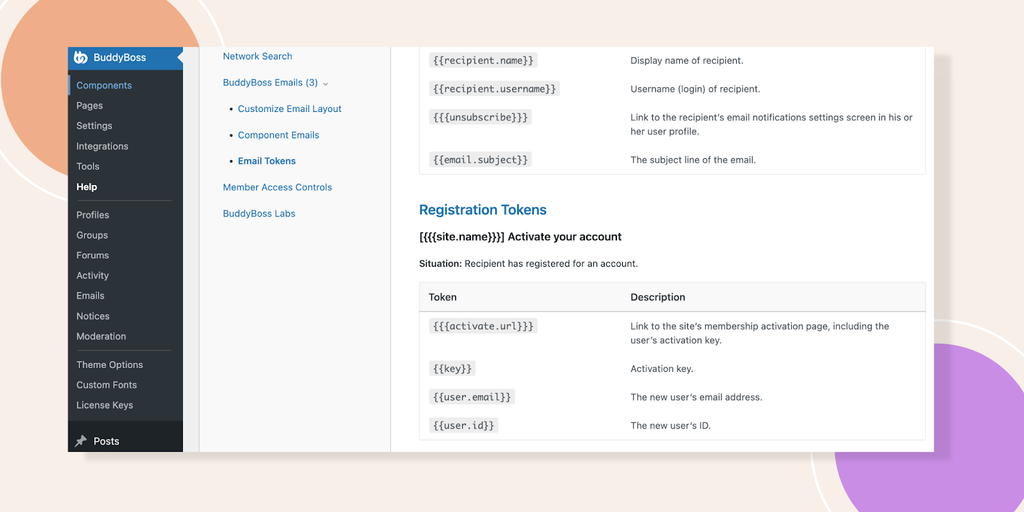
Before changing your BuddyBoss configuration, it helps to identify where the email delivery process is failing. Here are the most common causes to check.
1.1 WordPress Isn’t Sending Emails Properly
WordPress typically relies on the server’s mail system to send emails unless an SMTP service has been configured. On some hosting environments, this method may be restricted, poorly configured, or unreliable.
As a result, BuddyBoss may complete the registration process without the activation email reaching the user. You may notice the same problem with other WordPress emails, such as password reset messages, contact form notifications, or WooCommerce emails.
If multiple email types are failing, the issue is likely related to your site’s overall email configuration rather than BuddyBoss itself.
1.2 SMTP Is Not Configured
SMTP (Simple Mail Transfer Protocol) provides a more reliable way for WordPress to send emails through an authenticated mail server.
Without SMTP, your website may rely on the hosting server’s default mail function. This can lead to delivery problems, especially when the receiving email provider cannot verify the message’s origin.
Activation emails may then be delayed, sent to spam, or rejected altogether.
If your WordPress website does not currently use SMTP, configuring it should be one of the first troubleshooting steps.
1.3 A Plugin or Theme Is Causing a Conflict
BuddyBoss websites often rely on several plugins for membership, security, registration, email customization, and other functionality. A conflict between these components can interfere with the registration or email-sending process.
Common plugins to investigate include:
- Security and login protection plugins
- Membership plugins
- Email customization plugins
- Spam protection plugins
- User registration plugins
Your BuddyBoss Theme can also contribute to compatibility issues if it is outdated or not compatible with the current BuddyBoss Platform version. Keeping both the BuddyBoss Platform and the BuddyBoss Theme up to date is a good first step when troubleshooting compatibility issues.
1.4 BuddyBoss Registration or Email Settings Are Incorrect
BuddyBoss provides registration and email features that are part of the account activation workflow. If these settings have been changed during configuration or customization, the activation process may not work as expected.
Check the following:
- User registration is enabled in WordPress.
- Account activation is configured correctly for your registration workflow.
- BuddyBoss email notifications are enabled.
- The registration and activation pages are correctly assigned.
- The relevant email templates have not been accidentally turned off or modified.
If the settings look correct but activation emails are still missing, move on to testing WordPress email delivery and SMTP rather than repeatedly changing BuddyBoss settings.
1.5 Your Hosting or DNS Configuration Is Affecting Email Delivery
Sometimes WordPress and BuddyBoss are configured correctly, but the server or domain is preventing emails from being delivered reliably.
Common issues include:
- Outgoing email restrictions on the hosting account
- PHP mail limitations
- Missing or invalid SPF records
- Missing or invalid DKIM configuration
- Missing or misconfigured DMARC policy
- Firewall or server restrictions
- Email sending limits on shared hosting
These issues can affect whether receiving mail servers trust your messages. As a result, an activation email may be rejected, delayed, or delivered to the spam folder even though WordPress appears to send it successfully.
If the problem persists after checking BuddyBoss and SMTP settings, contact your hosting provider or email service and ask them to check the outgoing mail logs and delivery status.
1.6 The Email May Be Sent but Not Delivered
One important distinction is that “email not received” does not always mean “email was not sent.”
WordPress may successfully generate the activation email, but the message can still be rejected or filtered by the recipient’s email provider. This can happen when the sender’s domain is not properly authenticated or when the recipient’s email provider filters the message.
If your SMTP test succeeds but users still do not receive BuddyBoss activation emails, check:
- SMTP delivery logs
- Bounce or rejection messages
- Spam or junk folders
- SPF, DKIM, and DMARC configuration
- Whether the issue affects one email provider or multiple providers
This helps determine whether the problem occurs inside WordPress or after the email leaves your website.
2. How to Fix BuddyBoss Activation Email Not Working
The fastest way to troubleshoot missing BuddyBoss activation emails is to start with WordPress email delivery and then work through SMTP, registration settings, plugin conflicts, software updates, and hosting configuration.
Follow the steps below in order. Testing after each major change will help you identify the source of the problem without unnecessarily changing settings.
Step 1 – Check Whether WordPress Can Send Emails
Before changing your BuddyBoss settings, check whether your WordPress website can send emails successfully.
Use the test email feature provided by your SMTP or email delivery plugin. If the test email fails, focus on your WordPress email configuration, SMTP credentials, hosting environment, or mail server.
If the test email succeeds but BuddyBoss activation emails are still missing, the problem is more likely related to the BuddyBoss registration workflow, a plugin conflict, or email-specific settings.
You can also test other WordPress emails, such as:
- Password reset emails
- Contact form notifications
- WooCommerce order emails, if applicable
If multiple WordPress email types fail, troubleshoot your site’s email delivery system before changing BuddyBoss settings.
Step 2 – Configure SMTP Correctly
If WordPress is not sending emails reliably, configure SMTP instead of relying on the server’s default mail function.
SMTP sends messages through an authenticated mail server, which can improve reliability and reduce problems caused by server restrictions or email providers rejecting unauthenticated messages.
Depending on your email service, you may need:
- SMTP host
- Port number
- Encryption method, such as SSL or TLS
- Username
- Password or application-specific password
- Sender email address
Common email services include Gmail, Microsoft 365, SendGrid, Mailgun, Amazon SES, and other transactional email providers.
After configuring SMTP, send another test email. Do not proceed with BuddyBoss troubleshooting until the SMTP test succeeds.
Once the test email is working, try registering a new BuddyBoss account and check whether the activation email is delivered.
Step 3 – Verify BuddyBoss Registration Settings
If your SMTP test succeeds but new users still do not receive activation emails, check the BuddyBoss registration and account activation settings.
First, make sure WordPress allows new user registration:
Settings → General → Membership → Anyone can register
Then review your BuddyBoss registration settings and confirm that the account activation workflow is configured correctly for your community.
Also check that:
- The registration page is correctly assigned.
- The activation page is configured correctly.
- Email notifications are enabled.
- The relevant activation email template is available and has not been unintentionally modified.
- Your registration workflow does not rely on another plugin that could interfere with account activation.
After checking these settings, create a new test account and verify whether the activation email is generated and delivered.
Step 4 – Disable Conflicting Plugins
If WordPress and SMTP are working but activation emails are still missing, check for plugin conflicts.
Temporarily deactivate non-essential plugins, especially those that modify:
- User registration
- Email delivery
- Login security
- Spam protection
- Membership management
Keep BuddyBoss active, then create a new test account.
If the activation email works after turning off the plugins, reactivate them one at a time and test registration after each activation. This will help you identify which plugin is causing the conflict.
Once you find the conflicting plugin, check for an available update or contact its developer for compatibility guidance.
Step 5 – Update BuddyBoss Platform and BuddyBoss Theme
Outdated WordPress, BuddyBoss, or third-party plugins can cause compatibility problems that affect registration and other community functions.
Check for updates to:
- WordPress core
- BuddyBoss Platform
- BuddyBoss Theme
- Active plugins
Make sure BuddyBoss Platform and the BuddyBoss Theme are running compatible versions. After updating, clear your website and server cache if applicable, then test the registration process again.
Before updating a live website, create a backup or test the changes on a staging site. This is especially important if your website uses several membership, registration, or community plugins.
If you’re maintaining a BuddyBoss website and want ongoing access to theme updates and resources, visit PluginPro to explore our BuddyBoss Theme membership options.
Step 6 – Review Your Hosting Email Configuration
If SMTP, BuddyBoss settings, and plugins are not causing the problem, check whether your hosting environment is restricting outgoing email.
Depending on your hosting provider, look for:
- Outgoing email restrictions
- PHP mail limitations
- SMTP port restrictions
- Email sending quotas
- Firewall rules
- Server error logs
If you manage a VPS or dedicated server, verify that the required SMTP ports are available and that outgoing connections are not being blocked.
You should also review your domain’s email authentication records. Make sure your domain is valid:
- SPF record
- DKIM configuration
- DMARC policy
Incorrect or missing authentication records can cause receiving mail servers to reject activation emails or place them in spam.
If you cannot access these settings, contact your hosting or email provider and ask them to check the outgoing mail logs and delivery status for your domain.
Step 7 – Test the Entire Registration Process Again
After completing the troubleshooting steps, test the full registration and activation workflow from start to finish.
Create a new test account using an email address that has not previously been registered on your website. Then verify that:
- The registration form was submitted successfully.
- The activation email is sent.
- The email arrives in the inbox or spam folder.
- The activation link works correctly.
- The account becomes active.
- The new user can log in successfully.
If possible, test with more than one email provider, such as Gmail, Outlook, Yahoo, or your business email domain. If the email works with one provider but not another, the problem may be related to recipient-side filtering or email authentication.
Once the complete workflow works consistently, the activation email issue should be resolved.
3. Best Practices to Prevent BuddyBoss Email Delivery Issues
Once activation emails are working, a few maintenance steps can prevent the same problem from affecting future registrations.
3.1 Use SMTP for WordPress Emails
Configure your WordPress website to send emails via a reliable SMTP service rather than relying on the server’s default PHP mail () function.
SMTP gives you better control over outgoing messages and makes it easier to troubleshoot delivery problems when an email is not received.
3.2 Keep BuddyBoss and WordPress Updated
Keep the following components up to date:
- WordPress core
- BuddyBoss Platform
- BuddyBoss Theme
- Registration and membership plugins
- SMTP or email delivery plugins
Before updating a live BuddyBoss website, create a backup and check for compatibility issues. This is especially important when your site depends on several community, membership, or LMS plugins.
3.3 Test Registration After Major Updates
Don’t assume that registration will continue working after every update.
After updating WordPress, BuddyBoss, or a plugin that affects registration or email delivery, create a test account and check the complete activation process.
Make sure the registration form works, the activation email arrives, the activation link opens correctly, and the new account can log in successfully.
3.4 Avoid Using Multiple Plugins for the Same Email Function
Running multiple plugins that modify WordPress email delivery can make troubleshooting more difficult and may introduce conflicts.
Use one primary SMTP or email delivery solution and avoid installing additional email plugins unless you have a specific reason to use them.
If you switch to a different SMTP plugin, deactivate the previous one to avoid overlapping configurations.
3.5 Monitor Email Delivery
For a growing BuddyBoss community, occasional email testing is worth adding to your maintenance routine.
Check your SMTP or email service logs when users report missing activation emails. Look for failed deliveries, bounced messages, rejected emails, or authentication errors.
This can help you determine whether the problem starts inside WordPress or occurs after the message is handed off to the email provider.
3.6 Back Up Your Website Before Major Changes
Create a recent backup before making significant changes to your BuddyBoss website, such as updating multiple plugins, changing SMTP providers, modifying registration settings, or switching hosting environments.
A backup lets you restore the previous configuration if an update or configuration change causes unexpected problems.
4. FAQs
1. Why is my BuddyBoss activation email not working even though registration succeeds?
If registration succeeds but the activation email never arrives, WordPress is likely creating the account correctly, but the email is not being delivered. Start by checking your SMTP configuration, email delivery logs, spam folder, and domain authentication records such as SPF, DKIM, and DMARC.
2. Can another WordPress plugin stop BuddyBoss activation emails?
Yes. Plugins that modify registration, membership, security, spam protection, or email delivery can interfere with the activation process. Temporarily turn off non-essential plugins and test registration again. If the email starts working, reactivate the plugins one at a time to find the conflict.
3. How can I tell whether the problem is BuddyBoss or my hosting provider?
Send a test email from your WordPress SMTP or email delivery setup. If the test fails, check your SMTP credentials, mail server, and hosting restrictions first. If the test succeeds but BuddyBoss activation emails are still missing, review your registration settings and check for plugin conflicts.
4. Is the BuddyBoss Theme responsible for activation email issues?
Usually, activation email delivery is handled by WordPress and your configured email service rather than the theme itself. However, an outdated BuddyBoss Theme can cause compatibility problems with other components of your website. Keeping the BuddyBoss Theme and BuddyBoss Platform updated is recommended.
5. Can PluginPro help me maintain a BuddyBoss website?
If you’re looking for a more affordable way to access premium WordPress themes and plugins, PluginPro offers both individual products and membership plans. You can access individual products from $4.5 per item, while membership options are available for users who need access to multiple products and ongoing updates.
Before choosing a plan, check the included products, updates, and support to find the option that best fits your BuddyBoss website needs.
5. Conclusion
WordPress email delivery, SMTP configuration, registration settings, plugin conflicts, or hosting and DNS issues usually cause a missing BuddyBoss activation email. Start by testing WordPress email delivery, then work through the troubleshooting steps above to identify where the registration process is breaking down.
Keeping WordPress, BuddyBoss Platform, the BuddyBoss Theme, and your email-related plugins up to date can also help prevent future problems. If you’re maintaining a BuddyBoss website and want ongoing access to theme updates and resources, visit PluginPro to explore our BuddyBoss Theme membership options.