Editing pages with Flatsome UX Builder should be quick and straightforward. However, if the builder gets stuck on the loading screen, shows a blank page, or refuses to open, even simple updates become impossible. This issue can happen after a WordPress update, installing a new plugin, changing server settings, or enabling performance optimizations.
In most situations, the problem is caused by compatibility or configuration issues rather than a fault with Flatsome itself. Once you identify what’s preventing UX Builder from loading, the fix is usually simple and doesn’t require reinstalling your theme or rebuilding your website.
This guide covers the most common causes of the Flatsome UX Builder not loading issue and provides step-by-step solutions to help you get the visual editor working again as quickly as possible.

1. Why Is Flatsome UX Builder Not Loading?
Before attempting any fixes, it’s helpful to understand how UX Builder works.
Unlike third-party page builders, UX Builder is developed specifically for Flatsome and relies on several WordPress components working together. When you open the builder, WordPress loads PHP processes, JavaScript files, CSS assets, AJAX requests, and theme resources simultaneously to generate the live editing interface.
If any part of this process fails, the builder may never finish loading.
Some of the most common reasons include:
- Plugin conflicts
- Outdated Flatsome or UX Core
- JavaScript errors
- Browser or website cache
- PHP memory limits
- Unsupported PHP versions
- Server configuration issues
- CDN or optimization settings blocking scripts
Fortunately, most of these problems are relatively easy to diagnose and fix.
2. How to Fix Flatsome UX Builder Not Loading
The Flatsome UX Builder not loading issue can have several causes, so it’s best to troubleshoot one possibility at a time. Start with the simplest fixes below, then move on to the more advanced solutions if the problem persists.
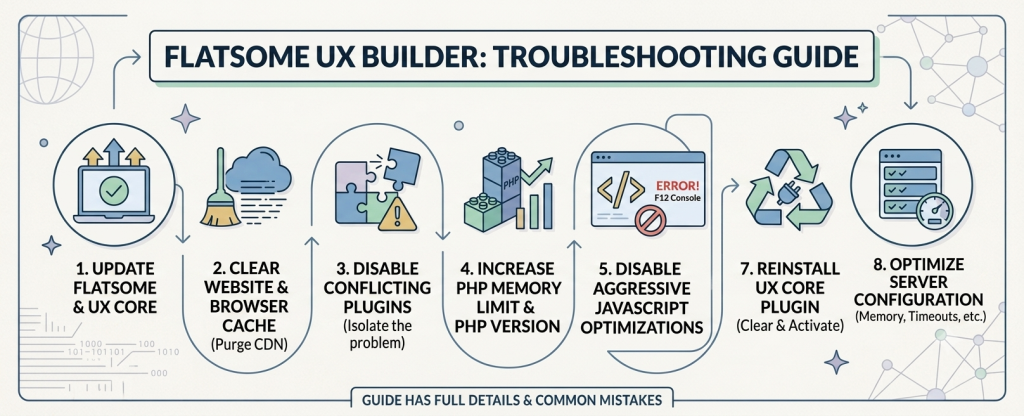
2.1 Update Flatsome to the Latest Version
One of the easiest fixes is updating your theme.
Older versions of Flatsome occasionally contain bugs that have already been resolved in newer releases. Running an outdated version alongside a recently updated WordPress installation or WooCommerce version can also create compatibility issues that prevent UX Builder from loading correctly.
To check for updates:
- Go to Dashboard → Updates
- Update the Flatsome theme
- Update the UX Core plugin if an update is available
- Update WordPress to the latest stable version
After updating everything, clear your cache and test the builder again.
2.2 Clear Your Website and Browser Cache
Cached CSS and JavaScript files are a common cause of the Flatsome UX Builder not loading issue, especially after updating Flatsome, WordPress, or installed plugins. Before trying more advanced solutions, clear every cache layer on your website.
Clear the following:
- Browser cache
- WordPress cache
- Server cache
- CDN cache (if applicable)
If you’re using Cloudflare, remember to purge its cache as well before testing UX Builder again.
2.3 Disable Plugins to Check for Conflicts
Plugin conflicts are one of the most common causes of the Flatsome UX Builder not loading issue. Optimization, security, or custom JavaScript plugins may load scripts that interfere with the visual editor.
To identify a conflicting plugin:
- Deactivate all plugins except WooCommerce and UX Core.
- Open UX Builder and check whether it loads.
- If it works, reactivate your plugins one at a time.
- Test the builder after each activation until the issue returns.
Once you’ve identified the conflicting plugin, update it, replace it with an alternative, or contact the developer for support.
2.4 Increase PHP Memory and Update PHP
UX Builder requires more server resources than the default WordPress editor. If your hosting account has a low PHP memory limit, the builder may stop loading before it finishes initializing.
Many WooCommerce websites run more reliably with a memory limit of 256 MB or higher.
If you have access to your hosting settings, increase the PHP memory limit, then restart UX Builder to see whether the issue has been resolved.
2.5 Disable JavaScript Optimization
Performance plugins can sometimes delay, combine, or minify JavaScript files required by UX Builder. When these settings are too aggressive, they may contribute to the Flatsome UX Builder not loading problem.
If you use LiteSpeed Cache, WP Rocket, Autoptimize, or a similar plugin, temporarily disable:
- JavaScript minification
- JavaScript combination
- Delay JavaScript
- Defer JavaScript
Clear all caches after changing these settings, then open UX Builder again. If it loads correctly, re-enable the optimization options one at a time to identify the setting causing the conflict.essage points directly to the plugin or script causing the problem, making it much easier to troubleshoot.
2.6 Check for JavaScript Errors
If UX Builder still won’t load, check your browser’s Developer Tools for JavaScript errors. These messages often reveal exactly what’s preventing the editor from opening.
In Google Chrome:
- Open the page where UX Builder won’t load.
- Press F12.
- Select the Console tab.
Look for errors such as:
- Uncaught JavaScript Error
- Failed to Load Resource
- jQuery Error
- 404 JavaScript File
- Syntax Error
If the errors reference a specific plugin or script, you’ve likely found the source of the problem.
2.7 Reinstall UX Core
UX Builder depends on the UX Core plugin for many of its visual editing features. Missing or corrupted UX Core files may result in the Flatsome UX Builder not loading error after an incomplete update.
To rule out this possibility:
- Go to Plugins → Installed Plugins
- Deactivate UX Core
- Delete the plugin (your content will not be removed)
- Reinstall the latest version bundled with Flatsome
- Activate the plugin again
After reinstalling UX Core, clear your website cache and test the builder once more.
If damaged plugin files were causing the issue, reinstalling UX Core often restores the editor immediately.
2.8 Check Server Configuration
Sometimes the problem isn’t related to WordPress or Flatsome at all but to your hosting environment.
If your server has restrictive PHP settings, UX Builder may time out before loading completely.
Ask your hosting provider to verify the following recommended values:
- PHP Memory Limit: 256 MB or higher
- max_execution_time: 120–300 seconds
- max_input_vars: 3000 or higher
- upload_max_filesize: 64 MB or higher
- post_max_size: 64 MB or higher
If any of these limits are set too low, increasing them can improve both UX Builder stability and overall website performance.
3. How to Prevent Flatsome UX Builder Loading Issues
After resolving the Flatsome UX Builder not loading issue, take a few preventive steps to reduce the risk of it happening again.
3.1 Keep Flatsome Updated
Theme developers regularly release updates that improve compatibility, security, and performance.
Whenever possible, keep the following components up to date:
- Flatsome
- UX Core
- WordPress
- WooCommerce
Avoid delaying updates for several months, as running outdated software increases the risk of compatibility issues.
3.2 Limit the Number of Installed Plugins
Every plugin adds additional code to your website.
Installing too many plugins, especially multiple optimization, security, or page builder plugins can increase the likelihood of conflicts.
Instead of installing several plugins that perform similar tasks, choose one reliable solution for each function whenever possible.
A lightweight plugin stack generally leads to better stability and faster loading times.
3.3 Test Updates on a Staging Website
If your website is important to your business, avoid updating everything directly on your live site.
A staging environment allows you to:
- Test new Flatsome releases
- Verify plugin compatibility
- Identify conflicts before visitors encounter them
This simple workflow can save hours of troubleshooting later.
3.4 Avoid Excessive Performance Optimizations
Caching and optimization plugins can significantly improve website speed, but enabling every available feature isn’t always beneficial.
Aggressive settings such as JavaScript combination, delayed script loading, or CSS optimization may occasionally interfere with WordPress admin functionality.
Only enable the optimization features your website actually needs, and always test UX Builder after changing performance settings.
3.5 Back Up Your Website Regularly
Unexpected issues can occur after updates, plugin installations, or server changes.
Creating regular backups ensures you can restore your website quickly if something goes wrong.
A complete backup should include:
- WordPress files
- Themes
- Plugins
- Database
- Media uploads
Having a recent backup gives you peace of mind before making major changes.
4. Recommended Plugins to Use with Flatsome
Although Flatsome is a feature-rich WooCommerce theme, a few additional plugins can help you maintain your website more efficiently, especially when troubleshooting issues or making major changes. The following plugins complement Flatsome without overlapping its built-in functionality.
4.1 UpdraftPlus
Before updating Flatsome, UX Core, or troubleshooting technical issues, it’s always wise to create a complete website backup. UpdraftPlus makes this process simple by backing up your files and database automatically, allowing you to restore your website quickly if anything goes wrong during the repair process.

4.2 WP Mail SMTP
Many WordPress websites experience email delivery problems after changing themes, plugins, or hosting environments. WP Mail SMTP improves email reliability by configuring WordPress to send messages through a proper SMTP service instead of the default PHP mail function. It’s particularly useful for WooCommerce stores that rely on order confirmations and customer notifications.
4.3 Advanced Database Cleaner
Over time, WordPress databases accumulate unnecessary revisions, expired transients, orphaned tables, and other unused data. Advanced Database Cleaner helps remove this clutter, keeping your database organized and potentially improving your website’s overall performance.

4.4 Duplicator Pro
Whether you’re migrating a website, creating a staging environment, or cloning a WooCommerce store, Duplicator Pro simplifies the entire process. It’s an excellent tool for testing Flatsome updates safely before applying them to your live website.
4.5 Query Monitor
If you’re comfortable with basic WordPress troubleshooting, Query Monitor is one of the most useful debugging plugins available. It helps identify PHP errors, database queries, JavaScript issues, REST API requests, and plugin conflicts that may contribute to problems such as the Flatsome UX Builder not loading error.
5. Frequently Asked Questions
5.1 What causes the Flatsome UX Builder not loading issue?
The most common causes are plugin conflicts, JavaScript errors, outdated versions of Flatsome or UX Core, insufficient PHP memory, or caching issues. Start by updating your website, clearing all caches, and disabling plugins one by one to identify the source of the problem.
5.2 Does updating Flatsome fix UX Builder loading problems?
Often, yes. New Flatsome releases regularly include bug fixes, compatibility improvements, and performance enhancements. Keeping Flatsome, UX Core, WordPress, and WooCommerce updated reduces the likelihood of editor-related issues.
5.3 Can caching plugins prevent UX Builder from loading?
Yes. Some caching and optimization plugins may interfere with the JavaScript files required by UX Builder, particularly if JavaScript minification, combination, or delay features are enabled. Temporarily disabling these optimizations and clearing all caches is a common troubleshooting step.
5.4 Should I use Elementor instead of UX Builder with Flatsome?
While Flatsome is compatible with Elementor, UX Builder is generally the better choice for most Flatsome users. Because it is developed specifically for the Flatsome theme, it offers better compatibility, smoother performance, and access to WooCommerce-focused design elements without relying on additional page builder plugins.
5.5 How much does Flatsome cost on PluginPro?
PluginPro offers the latest GPL version of Flatsome for just $4.50. If you regularly use premium WordPress themes and plugins, you can also choose one of the PluginPro Membership plans to access more than 12,000 GPL products, including regular updates, original GPL files, and unlimited website usage.
6. Conclusion
While the Flatsome UX Builder not loading issue can interrupt your workflow, it’s usually caused by common compatibility or configuration problems rather than the theme itself. By following the solutions in this guide, you can resolve most loading issues and get back to editing your website without rebuilding your WordPress installation.
Keeping your website updated, using reliable plugins, and performing regular maintenance are the best ways to avoid similar problems in the future.
Need the latest version of Flatsome or other premium WordPress themes and plugins? Explore the GPL collection at PluginPro and keep your website running smoothly with regularly updated products.