Learning how to install Flatsome theme correctly is one of the first steps toward building a professional WooCommerce website. Although the installation process only takes a few minutes, many beginners run into problems because they upload the wrong ZIP file, skip required plugins, or aren’t sure how to activate their license key.
A successful installation involves more than activating the theme. You’ll also need to install Flatsome Core, enable UX Builder, decide whether to use the child theme, and, install the required plugins, decide whether to use the child theme, and complete the initial setup before you start customizing your website.
This guide walks through the entire process from start to finish. You’ll also learn how to avoid common installation mistakes and fix the issues that users most often encounter after installing Flatsome.

1. Installation Overview
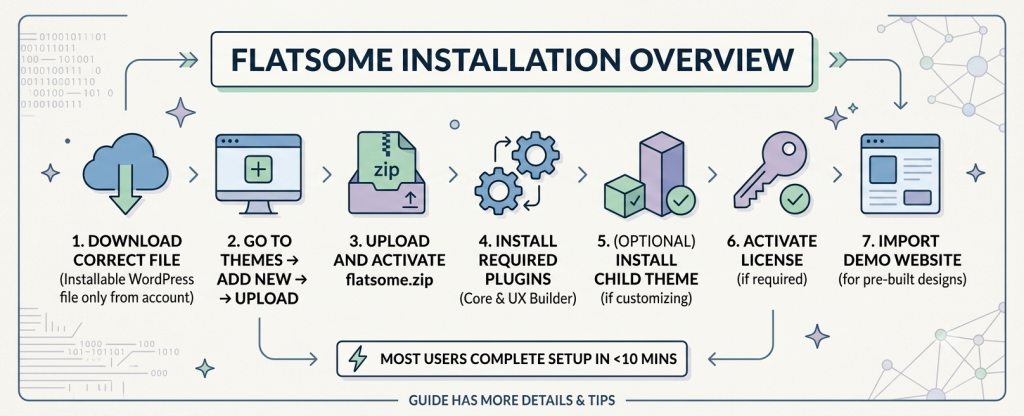
Before you start installing Flatsome, it helps to know what the overall process looks like. Most users can complete the setup in less than 10 minutes, and the only part that usually causes confusion is choosing the correct installation file. Once that’s done, the remaining steps are fairly straightforward.
Here’s a quick overview of the installation process:
- Download the Installable WordPress file only package from your purchase or membership account.
- In WordPress, go to Appearance → Themes → Add New → Upload Theme.
- Upload the flatsome.zip file and activate the theme.
- Install the required plugins, including Flatsome Core and UX Builder.
- Install the Flatsome Child Theme if you plan to customize the theme.
- Activate the license if your copy of Flatsome includes one.
- Import a demo website if you want to start with a pre-built design.
The rest of this guide explains each step in more detail, including a few common mistakes to avoid during installation.
2. What You Need Before Installing Flatsome
Before installing Flatsome, there are a few things worth checking first. Most installation errors aren’t caused by the theme itself—they happen because the wrong ZIP file is uploaded or the server doesn’t meet the minimum requirements. Spending a couple of minutes on these checks can save you time later.
2.1 Make sure your website is ready
Flatsome works with most modern WordPress hosting providers, but it’s still a good idea to confirm your website meets the recommended requirements before installing the theme.
Check that your website is using:
- A recent version of WordPress
- PHP 8.x or later
- Enough PHP memory for WooCommerce and UX Builder
- WooCommerce installed if you’re building an online store
You can usually find this information in your hosting control panel or by asking your hosting provider. If your server is running an older PHP version or has a very low memory limit, update those settings before continuing to avoid installation or performance issues.
2.2 Download the correct ZIP file
Uploading the wrong ZIP file is the most common installation mistake.
After downloading Flatsome, make sure you upload the installation ZIP file rather than the complete download package:
- All files & documentation
- Installable WordPress file only
Choose Installable WordPress file only. This package contains the flatsome.zip file that WordPress needs during installation.
If you upload the complete download package instead, WordPress will display an error such as:
The package could not be installed. The theme is missing the style.css stylesheet.
This doesn’t mean the theme is damaged. It only means WordPress can’t find the actual installation file. Extract the downloaded package, locate flatsome.zip, and upload that file instead.
2.3 Create a backup if you’re updating an existing website
You can skip this step if you’re installing Flatsome on a brand-new WordPress site.
For an existing website, creating a backup is always recommended before changing themes. While your posts, pages, and products won’t be deleted, switching themes can affect menus, widgets, and layout settings.
A recent backup gives you a quick way to restore your website if something doesn’t look right after the installation. Most hosting providers include automatic backups, but you can also create one manually using your preferred WordPress backup plugin.
3. Install Flatsome Theme
With the preparation complete, you’re ready to install Flatsome. The process only takes a few minutes and follows the same installation method as any other WordPress theme. The main difference is that Flatsome also requires two companion plugins before you can start building your website.
3.1 Upload and activate the theme
Log in to your WordPress dashboard and go to Appearance → Themes → Add New → Upload Theme.
Then:
- Click Choose File and select the flatsome.zip file.
- Click Install Now.
- Wait for WordPress to finish the installation.
- Click Activate.
Once activated, your website will immediately start using the Flatsome theme. If you’re replacing an existing theme, don’t worry if the layout looks different. That’s expected, and you’ll configure the design in the next steps.
3.2 Install Flatsome Core and UX Builder
After activating the theme, WordPress should display a notice asking you to install the recommended plugins.
The two required plugins are:
- Flatsome Core
- UX Builder
Flatsome Core adds the theme’s built-in features, while UX Builder provides the visual page builder used to create and edit layouts.
To install them:
- Click Begin installing plugins.
- Select both plugins.
- Click Install, then Activate.
Once they’re enabled, you’ll have access to all of Flatsome’s features, including UX Builder and the theme settings.
3.3 Install the child theme (recommended)
If you plan to customize template files, add custom PHP code, or work with a developer, it’s a good idea to install the Flatsome Child Theme.
A child theme keeps your customizations separate from the parent theme, so they won’t be overwritten when Flatsome is updated.
Installing it is similar to installing the main theme:
- Download the child theme ZIP file.
- Go to Appearance → Themes → Add New → Upload Theme.
- Upload the ZIP file and install it.
- Activate the child theme.
If you’re only changing colors, fonts, or layouts with the Customizer or UX Builder, you can continue using the parent theme without any issues. Installing the child theme isn’t required to install Flatsome theme, but it’s recommended if you plan to customize template files or add custom PHP code.
3.4 Activate your license key
Some versions of Flatsome include a license activation option after installation. If you have a valid license key, you can activate it from the Flatsome welcome page to enable additional services provided by the theme developer.
If you’re using the GPL version from PluginPro, you can install and use Flatsome without activating a license. The theme will continue to work normally, allowing you to build and customize your website as usual.
3.5 Import a demo website (optional)
Flatsome includes a collection of pre-built demo websites that you can import with a few clicks. This is a convenient way to start with a professionally designed layout instead of building every page from scratch.
Open the demo importer, choose the design you want to use, and start the import process. Depending on your hosting environment, the import may take several minutes to complete.
When it’s finished, review your homepage, menus, and WooCommerce pages to make sure everything is imported correctly. You can then replace the sample content with your own text, images, and products.
4. Common Installation Issues
If you’re learning how to install Flatsome theme, you may run into a few common installation issues. Fortunately, most of them are easy to fix.
4.1 “The package could not be installed”
This error usually means the wrong ZIP file was uploaded.
Make sure you’re uploading the flatsome.zip installation file rather than the complete download package. If necessary, extract the downloaded files first, locate flatsome.zip, then upload it again from Appearance → Themes → Add New → Upload Theme.
If WordPress reports that the theme is missing the style.css stylesheet, you’re uploading the wrong ZIP file.
4.2 UX Builder is missing
If UX Builder doesn’t appear after activating Flatsome, check that both Flatsome Core and UX Builder are installed and activated under Plugins → Installed Plugins.
If the plugins are already active, clear your browser cache and any WordPress caching plugins before checking again.
4.3 License activation doesn’t work
License activation can fail if the purchase code is already registered, you’re signed in with the invalid license key, or the license is still linked to another website.
Verify that you’re using the account that originally purchased Flatsome. If you’ve moved your website to a new domain, deactivate the license on the old installation before activating it again.
4.4 Demo import won’t finish
A demo import may stop midway if your hosting environment doesn’t provide enough PHP memory or execution time.
Increasing the PHP memory limit and maximum execution time usually resolves the issue. If you don’t have access to these settings, your hosting provider can update them for you.
4.5 The website doesn’t look like the demo
Installing Flatsome only changes your website’s theme it doesn’t import the layouts shown in the official previews.
To recreate one of those designs, open the demo importer and install the demo site that matches your project. After the import is complete, replace the sample content with your own pages, images, and products.
5. Frequently Asked Questions
1. Can I install Flatsome theme without a license key?
Yes. The GPL version of Flatsome available on PluginPro can be installed and used without activating a license key. All core theme features work normally after installation.
2. Can I update Flatsome without reinstalling the theme?
Not necessarily. If you’re only customizing your website with the WordPress Customizer or UX Builder, the parent theme is usually sufficient. A child theme is recommended if you plan to edit template files or add custom PHP code, as it protects your changes when the parent theme is updated.
3. Why does my website look different from the Flatsome demo?
Installing Flatsome only adds the theme itself. The layouts shown in the official previews are imported separately using the demo importer. To match a specific design, import the corresponding demo website and then replace the sample content with your own.
4. How much does Flatsome cost?
A standalone GPL version of Flatsome is available on PluginPro for just $4.50. If you regularly use premium WordPress plugins and themes, a PluginPro Membership offers access to a large collection of products for a more affordable price than purchasing them individually.
5. Can I update Flatsome without losing my customizations?
Yes. If your customizations are stored in the Flatsome Child Theme, updating the parent theme won’t overwrite them. Before installing any update, it’s still a good idea to back up your website so you can restore it if needed.
6. Conclusion
Knowing how to install Flatsome theme correctly makes the rest of your website setup much easier. Once the theme, required plugins, and optional child theme are in place, you can begin customizing your WooCommerce store with confidence.
Although activating the license and importing a demo website are optional, they can make the overall experience much smoother. Automatic updates, official support, and ready-made layouts allow you to spend less time configuring your website and more time building your online store.
If you’re looking for the latest GPL version of Flatsome, PluginPro provides regularly updated downloads along with practical WordPress tutorials and installation guides to help you build your website with confidence. If you were searching for how to install Flatsome theme, you should now have everything you need to complete the installation and start building your website.