
Learning how to install WPForms is straightforward, even if you are new to WordPress. WPForms is a drag-and-drop form builder that lets you create contact forms, registration forms, payment forms, surveys, and other forms without writing code.
In this guide, you will learn how to install WPForms Lite from the WordPress dashboard, install the paid WPForms plugin, activate a license when applicable, create your first form, and add it to a WordPress page. You will also learn how to test your form and troubleshoot common installation and notification problems.
1. What Is WPForms?
WPForms is a WordPress form builder that lets you create forms through a visual drag-and-drop interface. It also provides templates that can help you build common forms without starting from scratch.
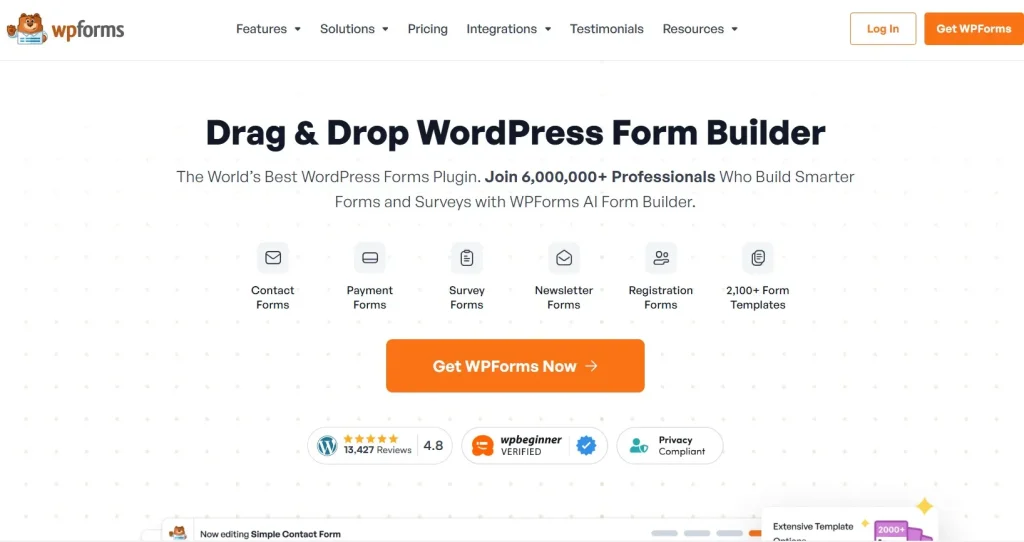
Depending on the version and features you use, WPForms can be used for:
- Contact forms
- Newsletter signup forms
- Registration and login forms
- Payment and donation forms
- Survey and poll forms
- File upload forms
- Appointment and request forms
WPForms is available in a free version and paid versions. WPForms Lite is suitable for basic form-building needs, while paid versions provide additional features and integrations.
Before installing the plugin, make sure you can access your WordPress administrator dashboard.
2. What You Need Before Installing WPForms
Before you begin, make sure that:
- You have administrator access to your WordPress website.
- Your WordPress installation is active and accessible.
- Your website meets the current requirements for the WPForms version you plan to install.
- If you are using an official paid WPForms license, you have access to the corresponding WPForms account and license information.
If you only need basic forms, you can install WPForms Lite directly from the WordPress plugin directory. If you are using a paid version, follow the installation method that applies to your license and product source.
3. How to Install WPForms in WordPress
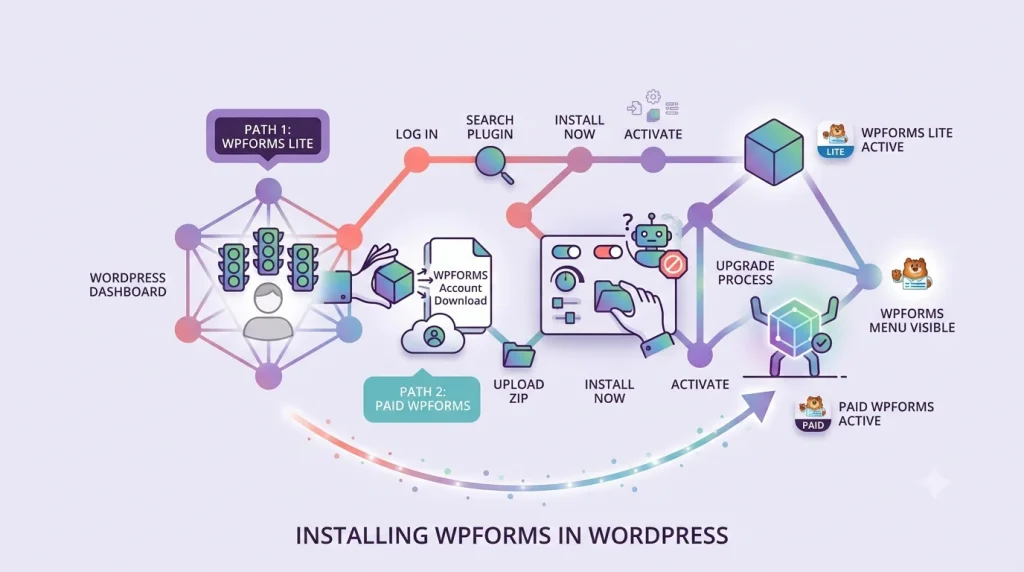
There are two common installation paths:
- Install WPForms Lite directly from the WordPress dashboard.
- Install the paid WPForms plugin using a ZIP file or the applicable upgrade process.
The first option is the simplest choice if you only need the free version.
3.1 Install WPForms Lite from the WordPress Dashboard
WPForms Lite can be installed directly through the WordPress plugin directory.
- Log in to your WordPress dashboard.
In many WordPress installations, you can access the dashboard at yourdomain.com/wp-admin. Enter your username and password, then click Log In. - Open the Add New Plugin page.
From the WordPress dashboard, go to Plugins → Add New Plugin. Use the search field to search for WPForms. - Find the official WPForms plugin.
Look for WPForms – Easy Form Builder for WordPress in the search results. - Install WPForms.
Click Install Now. WordPress will download and install the plugin. - Activate WPForms.
After installation finishes, the Install Now button will change to Activate. Click Activate.
WPForms is now installed and active. You should also see a WPForms menu in your WordPress dashboard.
3.2 Install the Paid WPForms Plugin
If you have an official paid WPForms license, you can install the paid plugin using the installation method provided for your WordPress setup.
For a self-hosted WordPress website, the paid plugin can be installed by uploading its ZIP file through the WordPress plugin uploader. If you are upgrading from WPForms Lite, WPForms also provides an upgrade process for installing the paid version.
- Download the WPForms plugin.
Log in to your WPForms account and open the Downloads section. Locate the license you want to use and download the WPForms plugin ZIP file. - Upload the plugin to WordPress.
In your WordPress dashboard, go to Plugins → Add New Plugin and click Upload Plugin. Select Choose File, select the WPForms ZIP file, and click Install Now. - Activate the plugin.
When the installation is complete, click Activate Plugin. You can verify the installation by going to Plugins → Installed Plugins and confirming that WPForms is active.
If you are upgrading from WPForms Lite, you can also use the applicable WPForms upgrade process after verifying your license.
4. Activate Your WPForms License
License activation applies when you are using an official paid WPForms license. If you are using a GPL version obtained from a third-party source, do not assume that an official WPForms license key is included.
4.1 Open WPForms Settings
From the WordPress dashboard, go to:
WPForms → Settings
Look for the License Key field in the License section.
4.2 Enter Your License Key
If you have an official WPForms license, log in to your WPForms account and open the Downloads section.
Copy the license key associated with your license.
Return to your WordPress dashboard and paste the key into the License Key field.
Click Verify Key.
4.3 Confirm Your License Status
After verification, check the license section in WPForms settings.
A successful verification should confirm the license status and show the applicable license level.
If verification fails, check the following:
- The complete license key was copied correctly.
- The license is still valid.
- You are using the correct WPForms account.
- Your website can establish the required external connection.
- Your installed WPForms version is compatible with your WordPress environment.
If you obtained the plugin from a GPL distribution that does not provide license keys, follow the provider’s installation instructions instead of attempting to activate it with an official developer license.
5. Create Your First WPForms Form
Once WPForms is installed and activated, you can create your first form.
From the WordPress dashboard, go to:
WPForms → Add New
The WPForms form builder will open.
5.1 Choose a Template
WPForms provides pre-built templates that can speed up form creation.
For a basic website contact form, you can choose a template such as Simple Contact Form.
You can also start with a blank form if you want to create the fields yourself.
5.2 Customize Your Form
The WPForms builder uses a drag-and-drop interface.
Depending on your form, you can add fields such as:
- Name
- Phone
- Dropdown
- Multiple choice
- Checkboxes
- Paragraph text
- File upload
Drag the fields you need into the form and arrange them in the desired order.
Select individual fields to adjust settings such as labels, descriptions, and required status.
5.3 Configure Notifications
Configure the form’s notification settings so that you receive an email when a visitor submits the form.
Check the notification recipient and make sure the email address is correct.
5.4 Save the Form
Click Save when you finish customizing the form.
Your form is now ready to be embedded on a WordPress page.
6. Add a WPForms Form to a WordPress Page
After creating your form, add it to a page where visitors can access it.
6.1 Create or Edit a Page
Go to:
Pages → Add New
You can also edit an existing page.
For example, you could create or edit a Contact Us page and place your contact form there.
6.2 Add the WPForms Block
In the WordPress editor, click the + button to add a block.
Search for WPForms and select the WPForms block.
Choose the form you created from the available list.
WordPress will insert the selected form into the page.
6.3 Publish or Update the Page
Click Publish for a new page or Update for an existing page.
Open the page on your website and confirm that the form appears correctly.
7. Test Your WPForms Form
After installing and configuring WPForms, test the form before directing visitors to it.
Submit the form yourself using realistic test information.
Check whether:
- The form accepts the submission.
- The confirmation message appears.
- The notification email is delivered.
- Required fields work correctly.
- The form displays properly on mobile devices.
- Any connected integrations work as expected.
If a notification email does not arrive, check the spam or junk folder first.
If notifications continue to fail, the problem may be related to WordPress email delivery rather than the form itself. Reviewing your site’s email configuration or using an SMTP solution may help improve delivery reliability.
8. Troubleshoot Common WPForms Problems
8.1 WPForms Does Not Appear in the Plugin List
If WPForms does not appear under Plugins → Installed Plugins, the installation may not have completed successfully.
Try installing the plugin again and check whether WordPress displays an error.
Also confirm that your account has permission to install plugins. Some WordPress environments may restrict plugin installation through hosting or site configuration.
8.2 The WPForms Plugin Cannot Be Activated
Activation problems can result from compatibility issues, server configuration, or conflicts with another plugin.
First, make sure WordPress and your active plugins are up to date.
If the problem continues, temporarily deactivate other plugins and test again. If WPForms works after another plugin is disabled, the issue may be related to a plugin conflict.
Re-enable plugins one at a time to help identify the conflicting plugin.
8.3 A WPForms License Will Not Activate
If an official paid WPForms license cannot be verified, first confirm that you entered the correct license key.
Then check that:
- The license belongs to the WPForms account you are using.
- The license is valid.
- Your website can connect to the external services required for verification.
- The WPForms installation is up to date.
If you are using a GPL version from a provider that does not supply license keys, license activation is not part of that installation process. Follow the provider’s product and installation instructions instead.
8.4 Forms Are Not Sending Email Notifications
If visitors can submit a form but notification emails do not arrive, first check the form’s notification settings.
Make sure the recipient address is correct and submit another test entry.
If the email still does not arrive, check the spam or junk folder and review your WordPress email delivery configuration.
For websites that depend heavily on form submissions, an SMTP solution can be considered to improve email delivery reliability.
9. WPForms Lite vs. Paid WPForms
The free and paid versions of WPForms serve different needs.
| Feature | WPForms Lite | Paid WPForms |
| Drag-and-drop builder | Yes | Yes |
| Basic form templates | Yes | Yes |
| Basic contact forms | Yes | Yes |
| Advanced templates | Limited | More options |
| Premium integrations | Limited | More options |
| Advanced form features | Limited | More options |
| Premium support | No | Yes |
| Paid license activation | No | Yes |
For a simple contact form, WPForms Lite may be sufficient. Websites that need additional integrations, advanced workflows, payment functionality, or other premium capabilities may benefit from a paid WPForms license.
10. Frequently Asked Questions About WPForms
10.1 Can I Install WPForms for Free?
Yes. WPForms Lite is available as a free WordPress plugin and can be installed directly from the WordPress dashboard.
10.2 Do I Need a Paid WPForms License to Create a Contact Form?
No. WPForms Lite can be used to create basic contact forms. A paid WPForms license is intended for users who need additional features and integrations.
10.3 How Long Does WPForms Installation Take?
For most WordPress websites, the basic installation takes only a few minutes. The process involves installing and activating the plugin, then configuring your form.
10.4 How Much Does WPForms Cost on PluginPro.org?
PluginPro.org lists individual GPL plugin products at $4.50 on its product pages. If you need multiple WordPress plugins and themes, PluginPro.org also offers membership options.
Membership pricing and included benefits can change, so check the current PluginPro.org membership page before purchasing.
10.5 Can I Use WPForms With Any WordPress Theme?
WPForms is designed for WordPress websites, but the appearance of a form can vary depending on the active theme and other site styling.
After embedding a form, check its layout on desktop and mobile devices and adjust its appearance if necessary.
11. Conclusion
Learning how to install WPForms does not require advanced WordPress knowledge. For basic forms, you can install WPForms Lite directly from the WordPress dashboard. If you use an official paid WPForms license, you can install the paid plugin and verify the license through the appropriate WPForms setup process.
After installation, create a form, configure its notifications, embed it on a page, and submit a test entry before making it available to visitors. If email notifications fail, check the notification settings and your site’s email delivery configuration.
If you need WPForms or other WordPress plugins, you can explore the relevant products and membership options available on PluginPro.org .